Free Image Enhancer:
Upscale and Unblur Photos Online
Upload a blurry or low-resolution photo and get a crisp, high-quality version back in seconds. This free image enhancer upscales the resolution, sharpens the details, and unblurs the parts that came out soft, so a picture that felt like a throwaway becomes one you actually want to use.


Click to browse from your deviceDrop your photo here or click to browse from your device
JPEG, PNG, WEBP, HEIC
By uploading a file, you agree to PicCollage's Terms of Use and Privacy Policy.

or try a sample photo


We've brought the same powerful features you love in our app directly to your browser.

HOW-TO STEPS
How to enhance an image in three steps
Step 01
Upload your photo - Drag your image into the box or pick it from your device. JPG, PNG, and most common formats work, and there is nothing to install.

Step 02
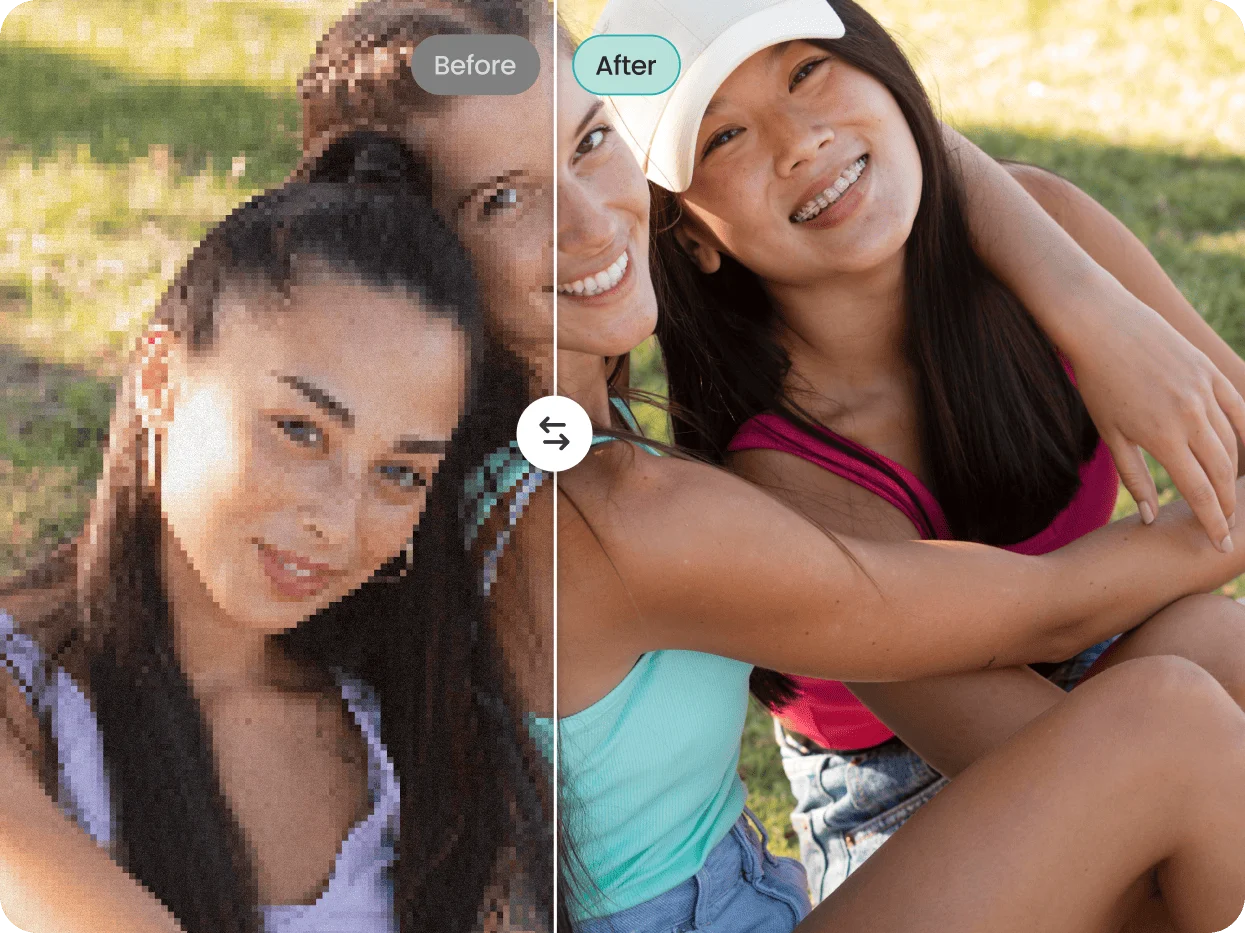
Enhance and upscale - Let the tool go to work. It increases the resolution, recovers detail, reduces noise, and unblurs soft edges. You can compare the before and after side by side.
Step 03
Download or keep editing - Save the enhanced image in one tap. If you want to add text, stickers, or turn it into a collage, jump straight into the PicCollage editor and build something with it.
A free image enhancer that does the work for you
Some photos are worth saving even when they come out wrong. Maybe the lighting was off, the camera focused on the wrong thing, or the file got compressed so many times over text and social apps that it turned into a soft, pixelated version of what you shot. An image enhancer fixes that. It reads what is already in the picture and rebuilds the missing sharpness and detail, so you are not stuck choosing between a bad photo and no photo at all.
Our AI image enhancer handles the three things people most often want. It improves image quality across the whole frame, so colors look truer and edges look defined instead of mushy. It works as an image upscaler, pushing a small or low-resolution file up to a larger, cleaner size without turning it into a blocky mess. And it can unblur an image when the shot came out soft, pulling back the detail that motion or a missed focus took away.
Everything runs in your browser. You do not need any software, you do not need to know how any of it works, and you do not need to pay before you can try it. Upload, enhance, and see the result.
USE CASES
What people use the image enhancer for
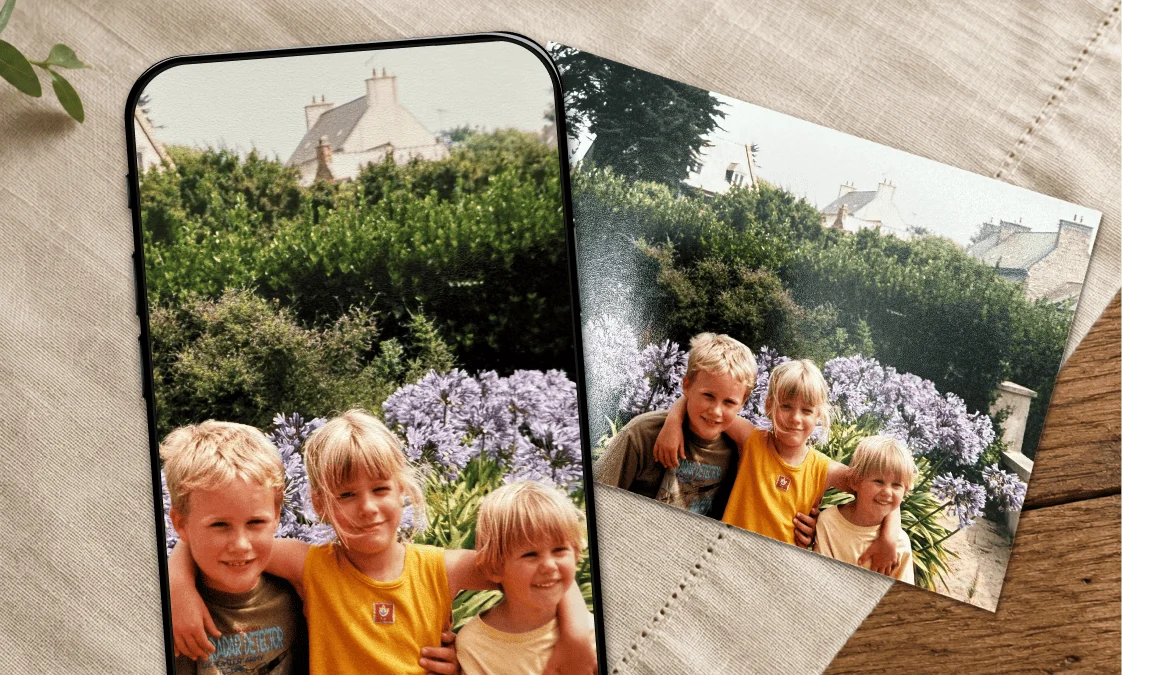
Fixing old and printed photos
Scanned family photos, old prints, and pictures pulled off an ancient phone tend to look faded and soft. Enhancing them brings back detail and sharpness so the memory looks the way you remember it, not the way the file degraded.
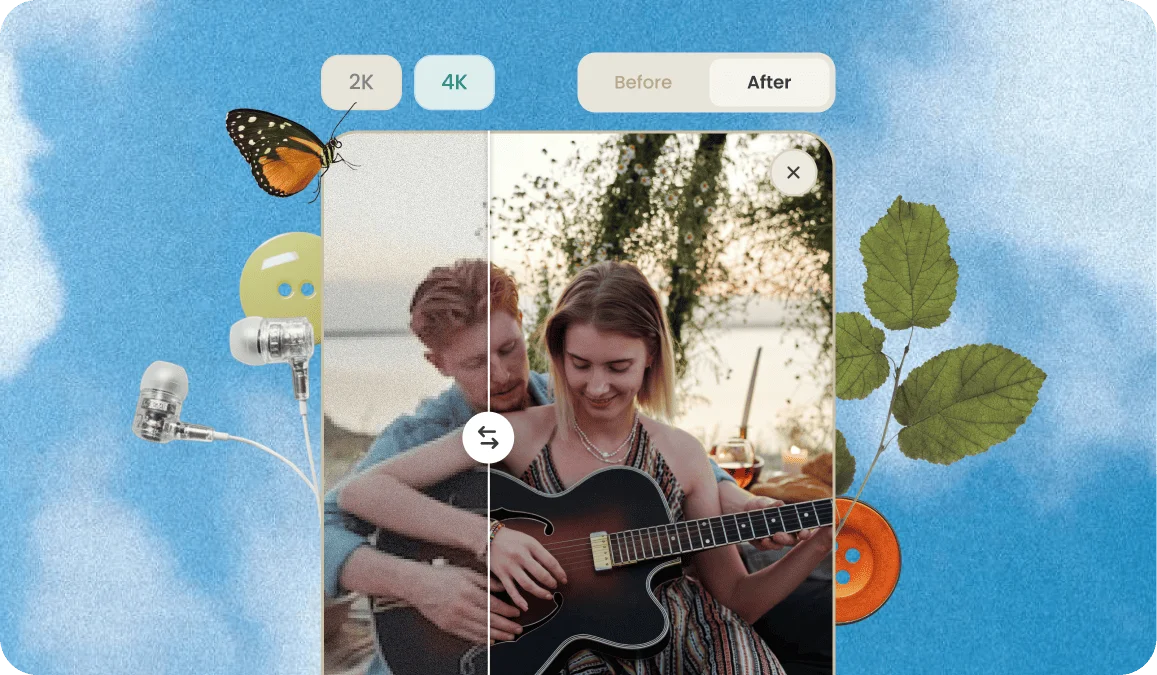
Cleaning up screenshots and downloads
Images saved from chats, social feeds, or the web are usually compressed and small. Upscaling and sharpening them gives you a version that holds up when you reuse it, print it, or drop it into a design.
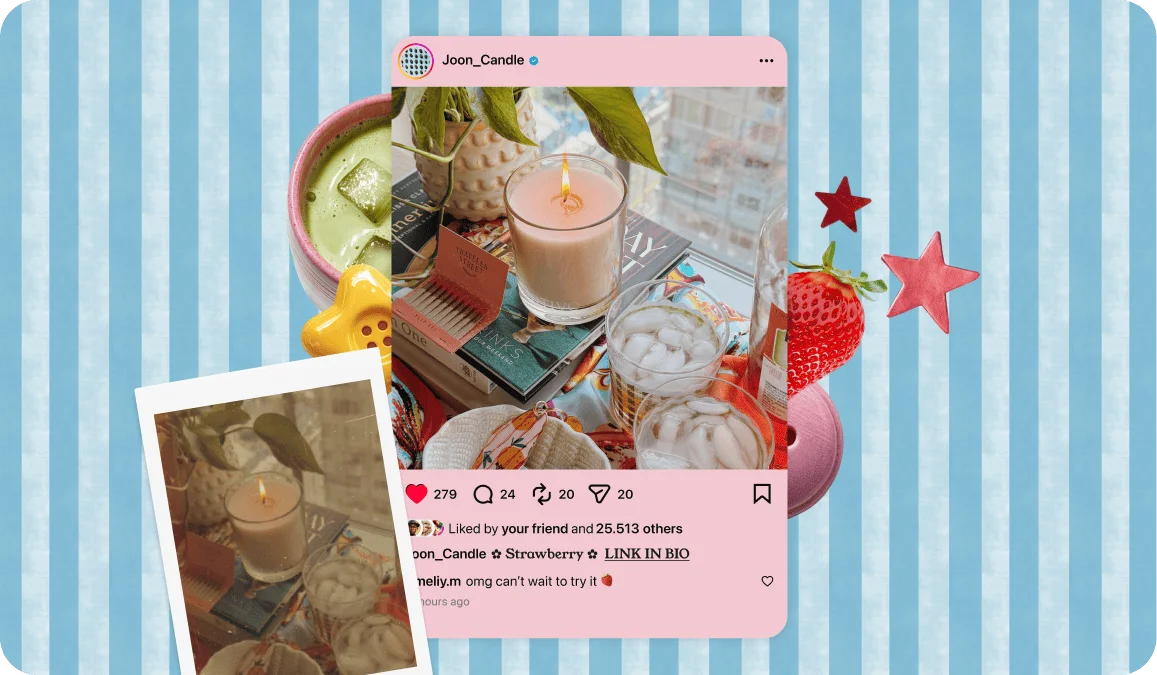
Product and selling photos
If you sell on Marketplace, Depop, or your own shop, a clean, high-resolution photo does more work than a blurry one. Enhance the shot so the product reads clearly and looks like something worth buying.
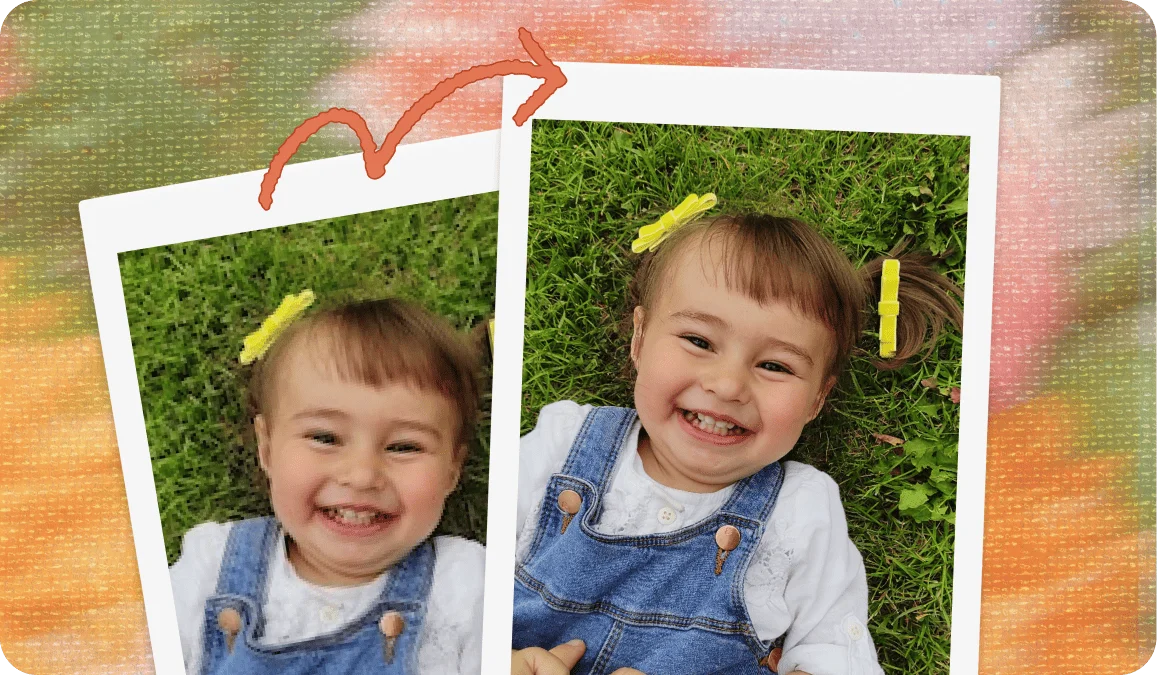
Recovering blurry moments
The photos you most want are often the hardest to reshoot. A first birthday, a concert, a candid that will never happen again. Unblurring gives a soft shot a real second chance instead of sending it to the trash.
From small and soft to sharp and high-resolution
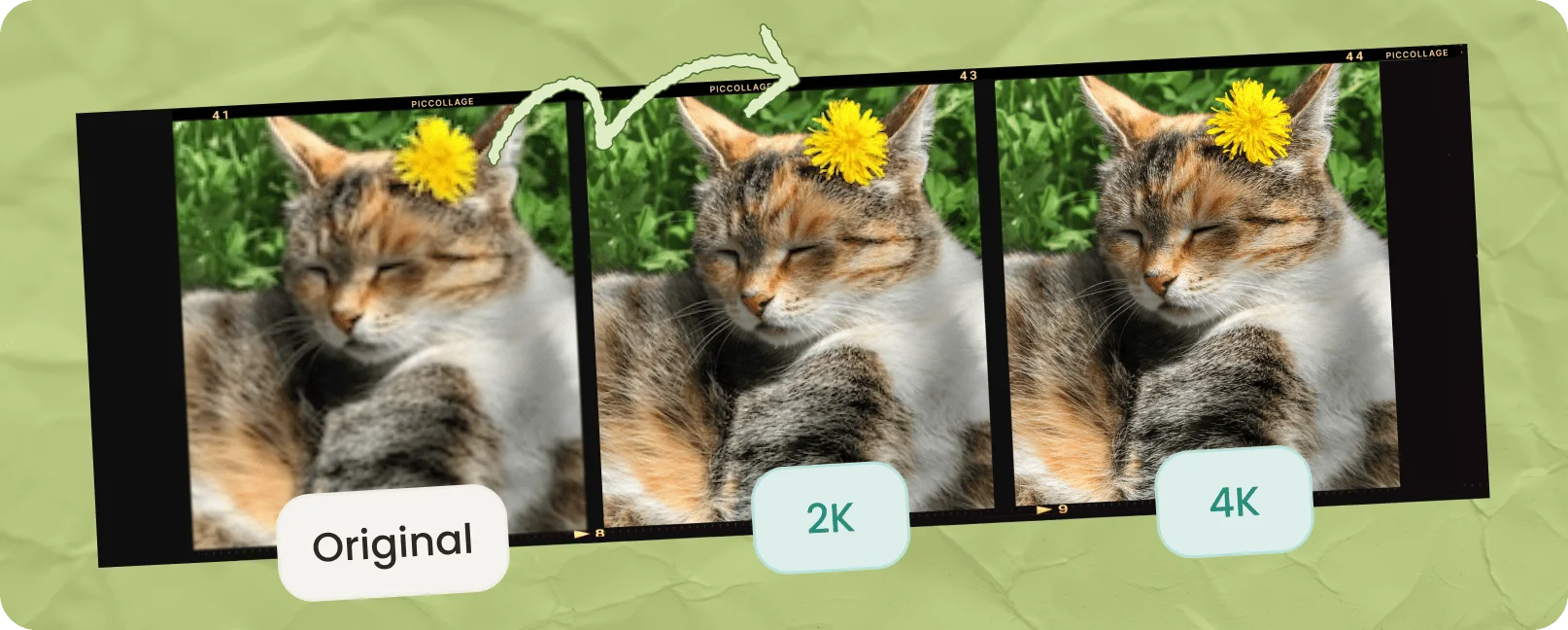
Resolution is where a lot of photos fall apart. A picture that looks fine on a phone screen can turn to mush the moment you enlarge it, print it, or put it next to a sharper image. The image upscaler solves this by increasing the resolution and filling in detail as it grows the file, so you can take a small image up to a larger, cleaner size, including 4K & 2K, without the jagged edges and blocky texture that plain resizing leaves behind.
The difference matters most when the photo has a job to do. Printing anything above a small size needs real resolution behind it. Product listings, book covers, posters, and framed prints all look thin and amateur when the source file is too small, and no amount of resizing in a basic tool will add the detail that was never captured. Upscaling rebuilds that detail instead of just stretching the pixels you already have.
Enhancing also cleans up the problems that come with low-quality files. It reduces the graininess and speckling that low light and heavy compression introduce, so denoising an image happens as part of the same pass. It sharpens soft focus and recovers the edges that make a photo read as clear. And because all of it runs online and free, you can test it on a real photo before deciding it is worth your time. Most people run one picture through, see the before and after, and understand immediately whether it fits what they need.
Denoise an image and clear up grain
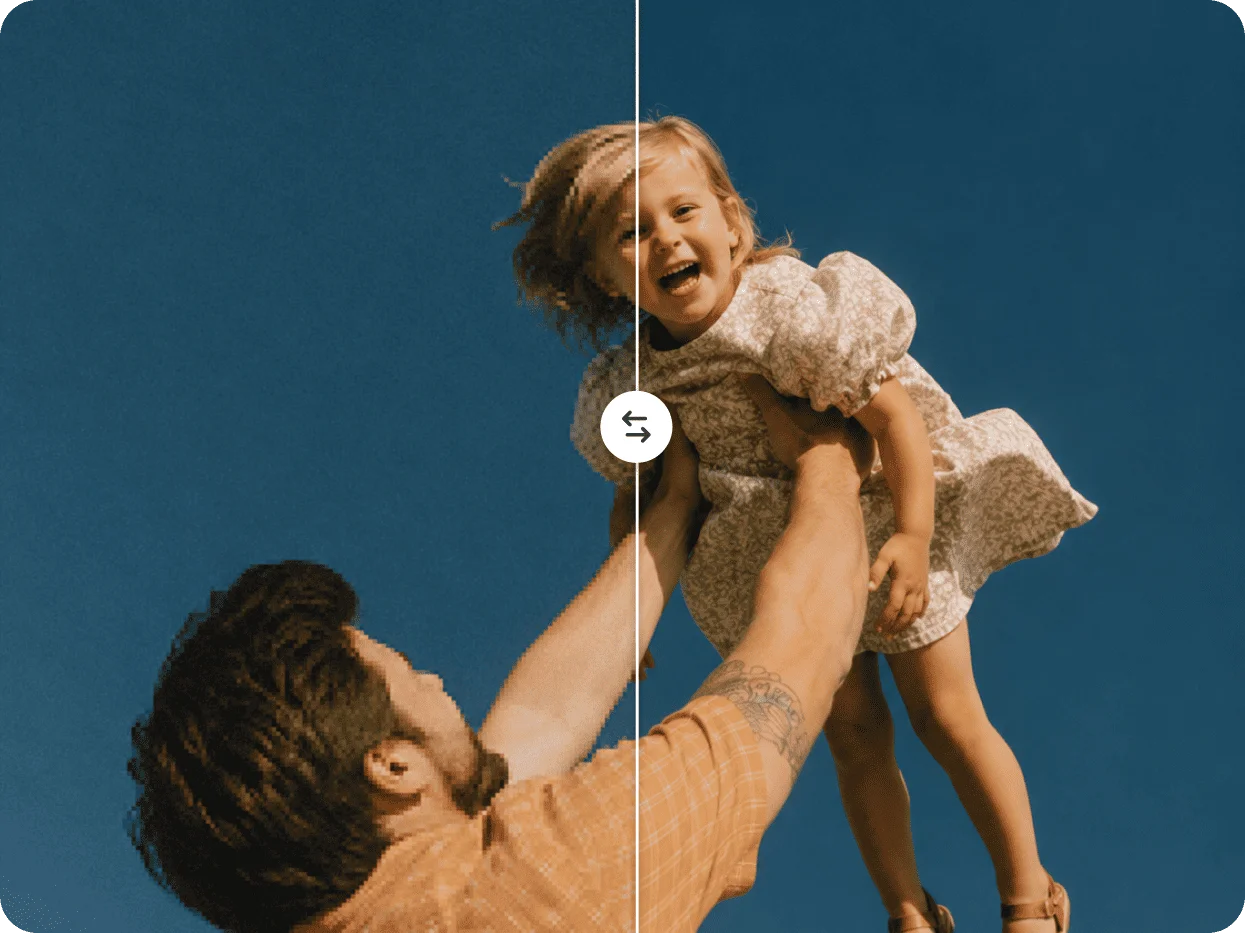
Noise is what makes a photo look cheap even when the shot itself is fine. Low light, a high ISO, or heavy compression from saving and resharing all leave behind grain and colored speckling that scatter across the image, and it shows up worst in the dark and flat areas.
To denoise an image is to clean that up, smoothing out the noise while holding onto the real detail so the picture looks clear instead of blurry or plastic. The image enhancer handles it automatically as part of the same pass, so an image denoise happens the moment you upload, with no sliders to fine-tune and no separate tool to open.
It works on the files people actually deal with, from dim indoor phone shots to old scans, and pairs the cleanup with sharpening and upscaling so a noisy, low-quality photo comes back smooth and defined in one step.
FEATURES
What the image enhancer includes


🖼️ AI upscaling to higher resolution
Enlarge small images and push them up to 4K & 2K while keeping the detail clean, not blocky. Instead of stretching the pixels you already have, it rebuilds the missing detail as it grows the file, so the larger version actually holds up when you print it or place it next to sharper images.
🫨 Unblur and sharpen
Recover soft, out-of-focus shots and bring back defined edges across the frame. It reads what is already in the photo and pulls back the sharpness that motion or a missed focus took away, so shots you thought were unusable get a real second chance.
✨ Noise reduction
Clean up the graininess and speckling from low light and heavy compression, so denoising happens automatically. You get a smoother, cleaner image without touching any settings, which matters most for photos shot in the dark or saved and reshared too many times.
🖌️ Automatic quality improvement
Better color, contrast, and clarity across the whole image, with nothing to adjust by hand. The tool balances everything in one pass, so a flat or dull photo comes out looking truer and more defined without you needing any editing experience.
Frequently Asked Questions
Upload it to the image enhancer and let it run. The tool increases the resolution, sharpens the detail, reduces noise, and unblurs soft areas in one pass, then hands you a cleaner version to download. You do not need any editing experience to do it.
Yes, you can enhance images for free, and you do not need to sign up before you try it. Upload a photo, see the result, and decide from there. However, usage limits may apply.
It can recover a lot of detail from a blurry image by rebuilding the edges and sharpening the focus. Very heavy blur has limits, but most soft or slightly out-of-focus shots come back looking noticeably clearer.
You can take small and low-resolution files up to a much larger size, including 4K, while keeping the detail clean rather than stretched. Bigger source files give you more room to work with, but even small ones improve.
Denoising removes the grain and speckling that low light and compression add to a photo. The enhancer handles it as part of the same process, so a noisy image comes out smoother without you having to do anything extra.