How to Edit Photos with Filters and Overlays with PicCollage

How to Edit Photos with Filters and Overlays with PicCollage

How to Edit Photos with Filters and Overlays with PicCollage

3 min 13 sec

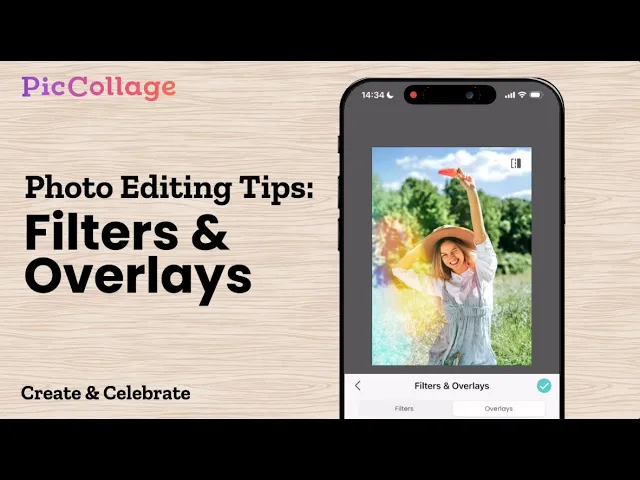
Filters and overlays do two different jobs. A filter changes the color and mood of your whole photo, like giving it a faded vintage film look. An overlay adds something on top, such as texture, light flares or small seasonal details. Each one works well on its own, but combining them is where your edits really start to stand out. This beginner-friendly tutorial shows you how to make quick adjustments, apply and fine-tune a filter, add an overlay, and stack both for a polished result. It works for any occasion, from holiday photos to your next photo dump or aesthetic Instagram post.

Step 1: Open the Photo Editor

In the PicCollage app, tap the edit photo icon in the top right corner of the home screen. Pick the photo you want to work on from your camera roll, and the editor opens right away.

Step 1: Open the Photo Editor

In the PicCollage app, tap the edit photo icon in the top right corner of the home screen. Pick the photo you want to work on from your camera roll, and the editor opens right away.

Step 2: Make Basic Adjustments

Before adding any effects, it’s worth fixing the basics. Go to the Adjust tab to change brightness, saturation and vibrance. A slightly brighter, well-balanced photo gives filters and overlays a better starting point.

Step 2: Make Basic Adjustments

Before adding any effects, it’s worth fixing the basics. Go to the Adjust tab to change brightness, saturation and vibrance. A slightly brighter, well-balanced photo gives filters and overlays a better starting point.

Step 3: Choose a Filter

Tap the Filters and Overlays tab at the bottom of the screen. Filters show up first, sorted into categories. Browse until you find one that fits the mood you’re going for.

Step 3: Choose a Filter

Tap the Filters and Overlays tab at the bottom of the screen. Filters show up first, sorted into categories. Browse until you find one that fits the mood you’re going for.

Step 4: Adjust the Filter Intensity

If the filter feels too strong or too subtle, tap it a second time to bring up the intensity slider. Drag it until the effect looks right. To compare, press and hold the before and after button, then release it to go back to your edit. When you’re happy, tap the check mark and save.

Step 4: Adjust the Filter Intensity

If the filter feels too strong or too subtle, tap it a second time to bring up the intensity slider. Drag it until the effect looks right. To compare, press and hold the before and after button, then release it to go back to your edit. When you’re happy, tap the check mark and save.

Step 5: Add an Overlay

To add texture or fun details, stay in the Filters and Overlays section and switch to the Overlays tab. You’ll find a mix of everyday, seasonal and special overlays. Tap any of them to preview it on your photo.

Step 5: Add an Overlay

To add texture or fun details, stay in the Filters and Overlays section and switch to the Overlays tab. You’ll find a mix of everyday, seasonal and special overlays. Tap any of them to preview it on your photo.

Step 6: Combine a Filter and an Overlay

For the most striking edits, use both on the same photo. In Filters and Overlays, choose a filter and set its intensity first. Then switch to the Overlays tab, pick an overlay and adjust it as well. Compare the before and after one last time, tap the check mark and save your photo.

Step 6: Combine a Filter and an Overlay

For the most striking edits, use both on the same photo. In Filters and Overlays, choose a filter and set its intensity first. Then switch to the Overlays tab, pick an overlay and adjust it as well. Compare the before and after one last time, tap the check mark and save your photo.

Frequently Asked Questions

How do I add filters and overlays to my photos and videos?

Double-tap a photo, then tap Edit > Filters & Overlays. For videos, just double-tap and tap Filters. Pick the look you like!

Learn more: Add Filters & Overlays to Your Photos and Videos

Can I adjust the intensity of filters and overlays?

Yes! In Filters & Overlays, tap a filter or overlay to apply it, then tap it again to open the slider. Drag it to make the effect stronger or softer.

Can I adjust my photo manually?

Yes! Double-tap the photo, then tap Edit > Adjust to fine-tune brightness, contrast, warmth, saturation, vibrance, highlights, shadows and more.

Are there templates with filters already applied?

Yes! On the Home screen, tap Templates and scroll down to Filter Templates. Pick one, add your photos, and the filter is applied automatically.

Explore More Tutorials

01 / 00

Blog Image

Collage Basics

• 4 min 49 sec

How to Create an Aesthetic Digital Scrapbook

Blog Image

Text Editing

• 1 min 59 sec

How to Easily Add and Edit Text in Collages

Blog Image

Text Editing

• 3 min 52 sec

How to Edit Text Backgrounds in PicCollage

Blog Image

Photo Editing

• 3 min 05 sec

How to Edit Fall Photos for a Cozy Autumn Look

Blog Image

Photo Editing

• 3 min 05 sec

How to Edit Photos with Magic Tools