How to Edit Fall Photos for a Cozy Autumn Look

How to Edit Fall Photos for a Cozy Autumn Look

How to Edit Fall Photos for a Cozy Autumn Look

3 min 05 sec

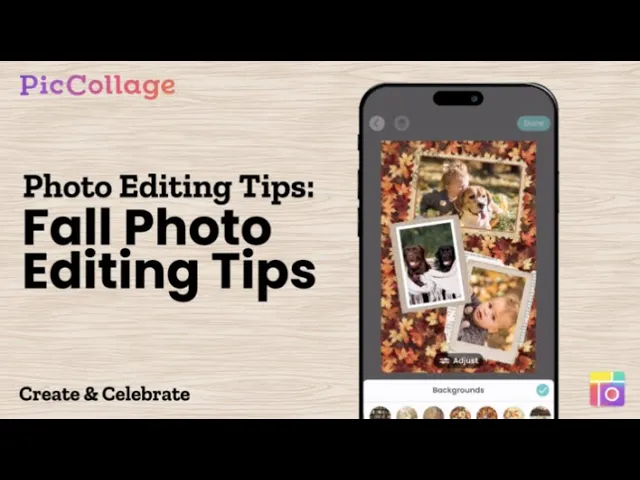
Fall photos have a mood of their own: golden light, orange leaves, pumpkin patches and oversized sweaters. A good edit can push that warmth even further and turn a handful of everyday shots into something you’ll actually want to post. In this tutorial, you’ll learn how to build a fall collage from scratch, decorate it with seasonal stickers and frames, set an autumn background, and finish with photo effects that give everything a soft, warm glow. It takes just a few minutes, and the result works perfectly for Instagram, Pinterest, or a seasonal phone wallpaper.

Autumn is the perfect time for capturing warm, golden-hour memories, but sometimes your photos need a little extra touch to truly bring out that cozy, seasonal vibe. In this easy tutorial, we’ll show you how to use PicCollage to create beautiful, aesthetic fall photo edits right from your phone. Whether you're documenting a trip to the pumpkin patch, a crisp morning walk, or your favorite warm beverage, follow these simple steps to make your autumn photos stand out.

Step 1: Create a Grid Collage with Your Fall Photos

Open the app and start a new grid collage. Pick a layout that fits the number of photos you want to show, then tap each cell to add your pictures. Mixing wide shots (a forest path, a pumpkin field) with close-ups (a latte, a single leaf) makes the grid feel balanced and gives it more of a story. You can drag photos between cells and pinch to adjust the crop until each one sits right.

Step 1: Create a Grid Collage with Your Fall Photos

Open the app and start a new grid collage. Pick a layout that fits the number of photos you want to show, then tap each cell to add your pictures. Mixing wide shots (a forest path, a pumpkin field) with close-ups (a latte, a single leaf) makes the grid feel balanced and gives it more of a story. You can drag photos between cells and pinch to adjust the crop until each one sits right.

Step 2: Add Fall Stickers to Your Collage

Stickers are the quickest way to make a collage feel seasonal. Open the sticker library and search for terms like “fall”, “autumn”, “leaves” or “pumpkin”. Drop a few onto your grid, then resize and rotate them so they overlap the edges of your photos a little. A light touch works best here: two or three well-placed stickers look more polished than a crowded layout.

Step 2: Add Fall Stickers to Your Collage

Stickers are the quickest way to make a collage feel seasonal. Open the sticker library and search for terms like “fall”, “autumn”, “leaves” or “pumpkin”. Drop a few onto your grid, then resize and rotate them so they overlap the edges of your photos a little. A light touch works best here: two or three well-placed stickers look more polished than a crowded layout.

Step 3: Add Photos with Frames

To give certain pictures more presence, add them inside a frame. Choose a frame shape you like, place it on the collage, then fill it with one of your favorite fall shots. Framed photos stand out from the grid and add depth, which is handy for highlighting a portrait or a standout moment from your day.

Step 3: Add Photos with Frames

To give certain pictures more presence, add them inside a frame. Choose a frame shape you like, place it on the collage, then fill it with one of your favorite fall shots. Framed photos stand out from the grid and add depth, which is handy for highlighting a portrait or a standout moment from your day.

Step 4: Add a Background Image

A seasonal background ties the whole design together. Open the background options and look for warm textures, plaid patterns, or leafy prints in orange, brown and deep red. You can also use one of your own photos as the background, like a blurred shot of autumn trees, to keep everything personal and cohesive.

Step 4: Add a Background Image

A seasonal background ties the whole design together. Open the background options and look for warm textures, plaid patterns, or leafy prints in orange, brown and deep red. You can also use one of your own photos as the background, like a blurred shot of autumn trees, to keep everything personal and cohesive.

Step 5: Apply Fall Photo Effects

This is where the cozy aesthetic really comes together. Select a photo and browse the available effects and filters.

Step 5: Apply Fall Photo Effects

This is where the cozy aesthetic really comes together. Select a photo and browse the available effects and filters.

Step 6: Save and Share Your Fall Edit

Once you’re happy with the result, save the collage to your phone. From there you can post it straight to Instagram, pin it on Pinterest, or send it to friends who were part of the memories.

Step 6: Save and Share Your Fall Edit

Once you’re happy with the result, save the collage to your phone. From there you can post it straight to Instagram, pin it on Pinterest, or send it to friends who were part of the memories.

Frequently Asked Questions

Can I adjust my grid layout?

Yes! Tap Layout, then tap Grids and use the sliders to adjust the spacing and rounded corners. You can also tap a photo and drag the green handles on its border to resize it.

Learn More: Adjust the Grid and Size of a Collage

How do I find the full pack of a sticker I like?

Love a sticker from your Recent tab or a template? Double-tap it, then tap View Pack to open its original pack and find more in the same style!

Learn more: Easily Find Sticker Packs in Your Collages!

How do I add frames to my photos?

Double-tap the photo, then tap Frames and explore a wide selection of styles to find the perfect match for your photo! Learn more: Get Creative with the Frame Picker!

How do I change my collage background?

Tap Backgrounds in the editor to browse designs, or tap the magnifying glass to search. Want it custom? Pick a color with the eyedropper or use your own photo!

Learn more: Guide to Customizing Your Collage Background

How do I give my photos a seasonal look?

Double-tap the photo, then tap Edit > Magic Effects. Browse the styles and pick the one you like!

Learn more: Edit Individual Photos - Magic Effects, Magic Edit & More

Explore More Tutorials

01 / 00

Blog Image

Collage Basics

• 4 min 49 sec

How to Create an Aesthetic Digital Scrapbook

Blog Image

Text Editing

• 1 min 59 sec

How to Easily Add and Edit Text in Collages

Blog Image

Text Editing

• 3 min 52 sec

How to Edit Text Backgrounds in PicCollage

Blog Image

Photo Editing

• 3 min 05 sec

How to Edit Photos with Magic Tools

Blog Image

Photo Editing

• 3 min 13 sec

How to Edit Photos with Filters and Overlays with PicCollage