3 min 52 sec
Whether you're creating a festive holiday card, designing a visual mood board, or putting together a fun weekend photo dump, standing out is all about the details. Adding a custom background to your text is one of the easiest ways to make your message pop against busy photos or vibrant designs. In this quick tutorial, we will walk you through exactly how to change and customize the background on your texts in the PicCollage app.


Frequently Asked Questions
What kinds of text backgrounds are available in PicCollage?
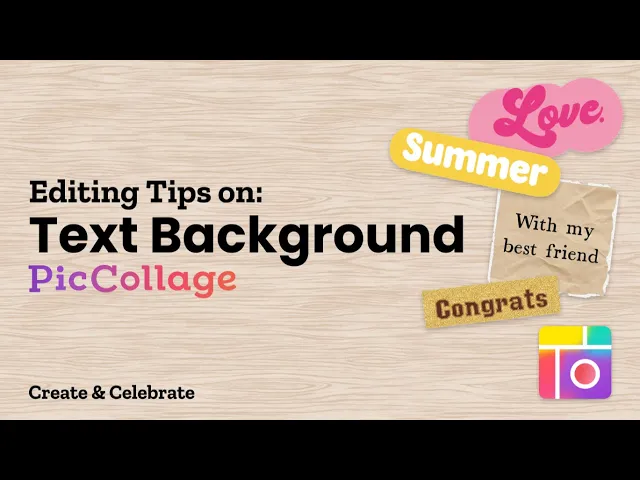
Currently we have background styles including paper tear, bubble, tape, brush, note, and more available! You can view all the options in the 'A with a Background' tab in text editor.
How do I remove text background colors?
You can simply double tap the text on the canvas, tap the 'A with a Background', and selecting the 'Null' icon.
Learn more: Remove Text Background Colors
How do I add or change a colored background behind my text?
Simply select the background options in A with a Background' tab! Feel free to scroll right to see more of our background color collections.
Can I adjust the opacity of text background?
Yes! You can double tap your selected text background color, then tap the slider icon to adjust hue, saturation, brightness, and opacity.
Learn more: Add and Edit Text
Explore More Tutorials
01 / 00


