3 min 05 sec
Some photos are almost perfect. There’s a stranger walking through the background, the framing is too tight, the background is messy, or you’re not quite centered. Instead of giving up on the shot, you can fix it in a few taps.
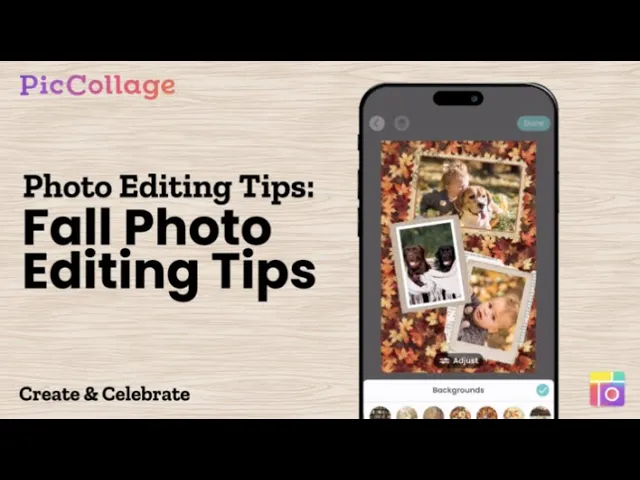
In this tutorial, you’ll learn how to use four Magic Tools in PicCollage: Magic Erase to remove unwanted objects, Magic Expand to resize and extend your photos, Remove Background to create clean cutouts, and Magic Lift to reposition your subject. Each one takes less than a minute.


Frequently Asked Questions
How do I erase an object on a picture?
You can double-tap the photo and select Edit to easily erase any unwanted parts with the brush!
Learn more: Guide to Using Magic Erase
Can I make my photo fit any ratio?
Yes! Magic Expand extends your photo to any ratio without cropping, perfect for template slots or social media posts.
Learn more: Magic Expand: Make Any Photo Fit Perfectly
How do I make my collage background transparent?
You can go to the background picker to select the transparent background! This turns your creation into a reusable scrap, which you can easily collect, copy, or paste into other collages.
Learn more: 🪄How to Save a Collage with a Transparent Background (VIP Feature!)
How can I make my photo stand out in my collage?
Try Magic Lift to make the person or object in your photo pop right off the page!
Learn more: Bring Your Photos to Life with Magic Lift!
Explore More Tutorials
01 / 00


