
Create Heartfelt
Holiday Cards
in Minutes
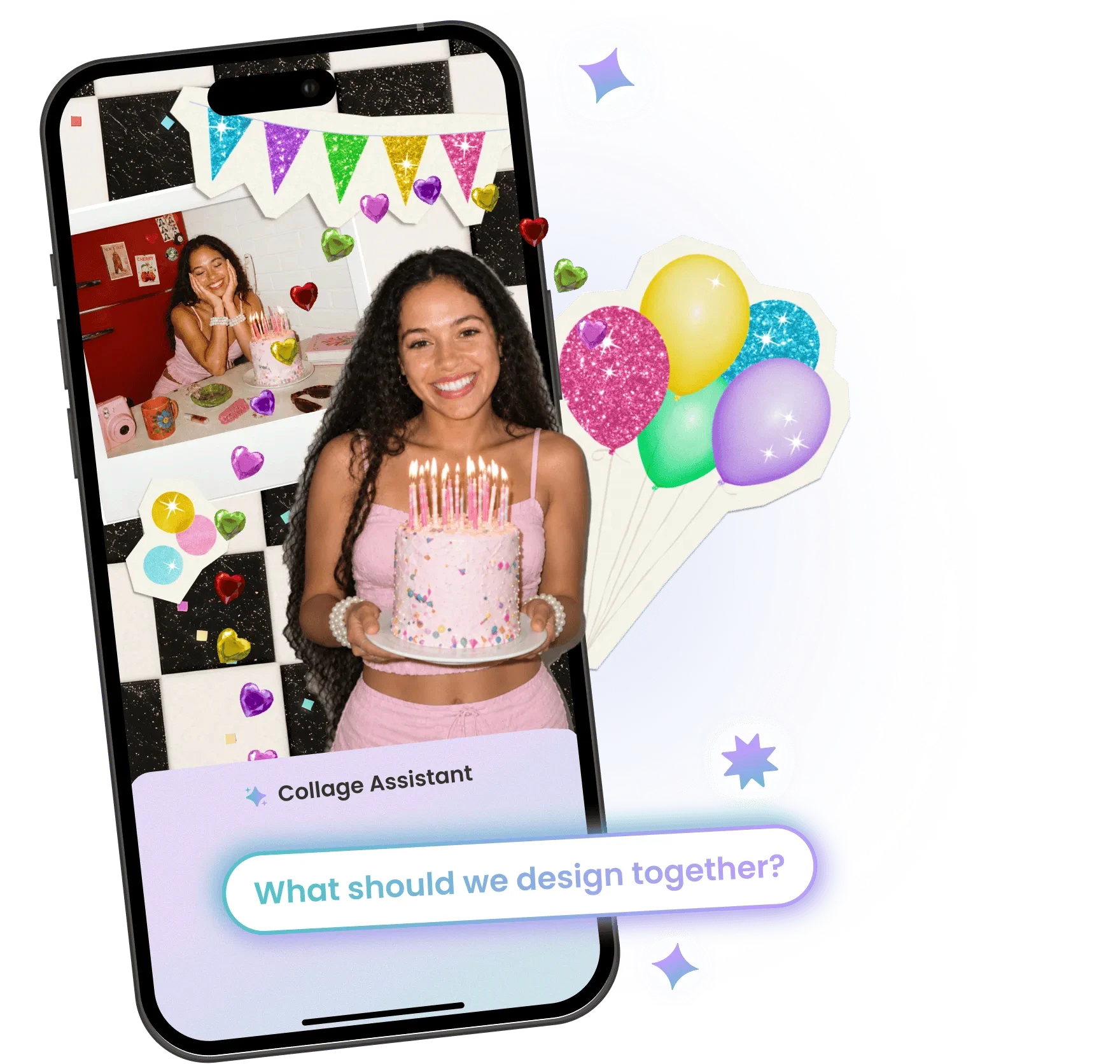
Tell Collage Assistant what you want in your own words. Change a background, cut out the dog, write a birthday message in balloon letters. It works on the photos you added, so the result still looks like something you made.
Create Heartfelt
Holiday Cards
in Minutes
Tell Collage Assistant what you want in your own words. Change a background, cut out the dog, write a birthday message in balloon letters. It works on the photos you added, so the result still looks like something you made.
Create Heartfelt
Holiday Cards
in Minutes
Tell Collage Assistant what you want in your own words. Change a background, cut out the dog, write a birthday message in balloon letters. It works on the photos you added, so the result still looks like something you made.
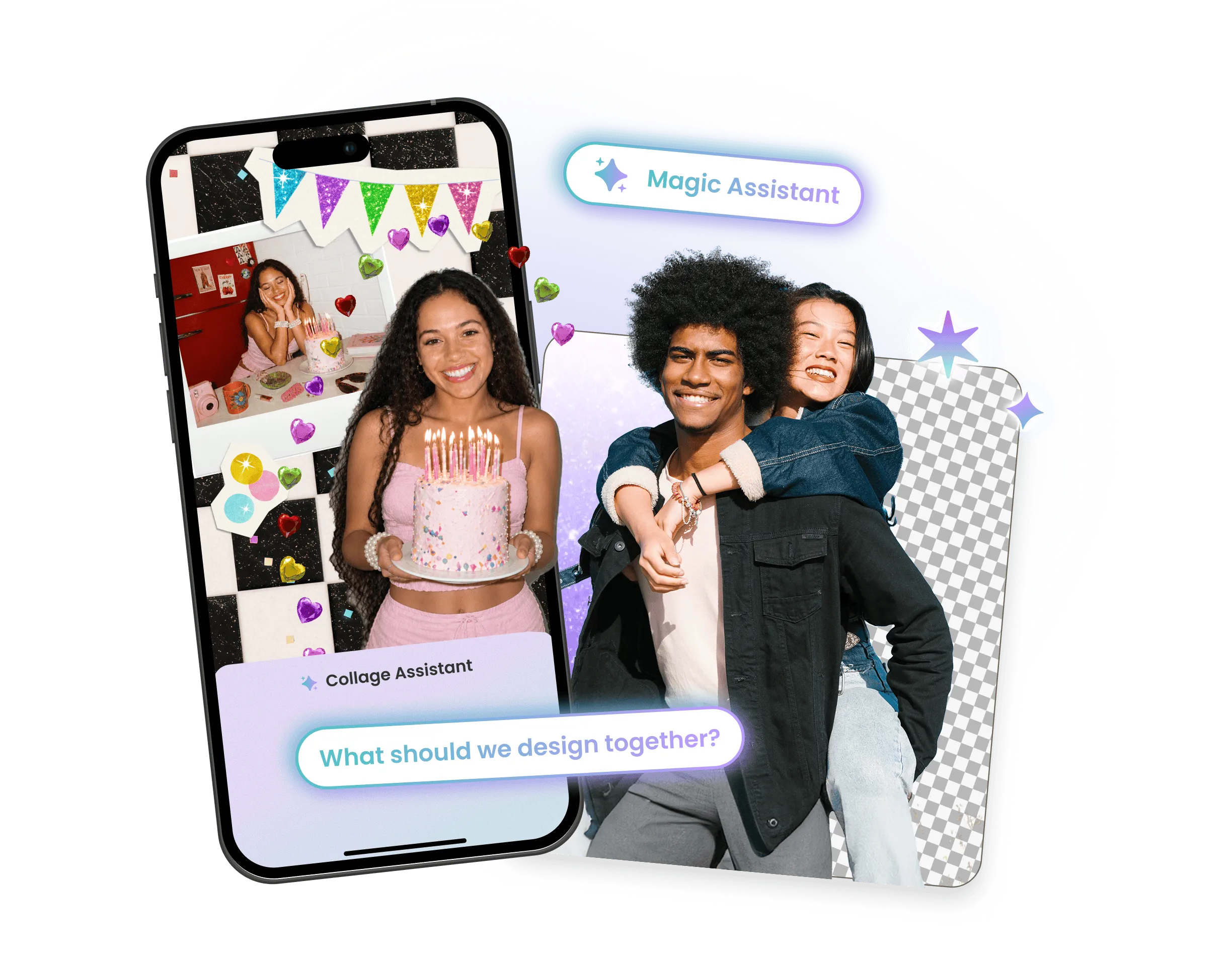
Why Use Collage Assistant in PicCollage?
Why Use Collage Assistant in PicCollage?

Every Piece Stays Movable
Stickers, borders, backgrounds, and filters each land as their own piece in the editor. Tap one and drag it.
Move it, restyle it, or delete it without disturbing anything else. You are picking up a design in progress, not a finished picture.
Every Piece Stays Movable
Stickers, borders, backgrounds, and filters each land as their own piece in the editor. Tap one and drag it.
Move it, restyle it, or delete it without disturbing anything else. You are picking up a design in progress, not a finished picture.

It Works on Your Photos, Not Around Them
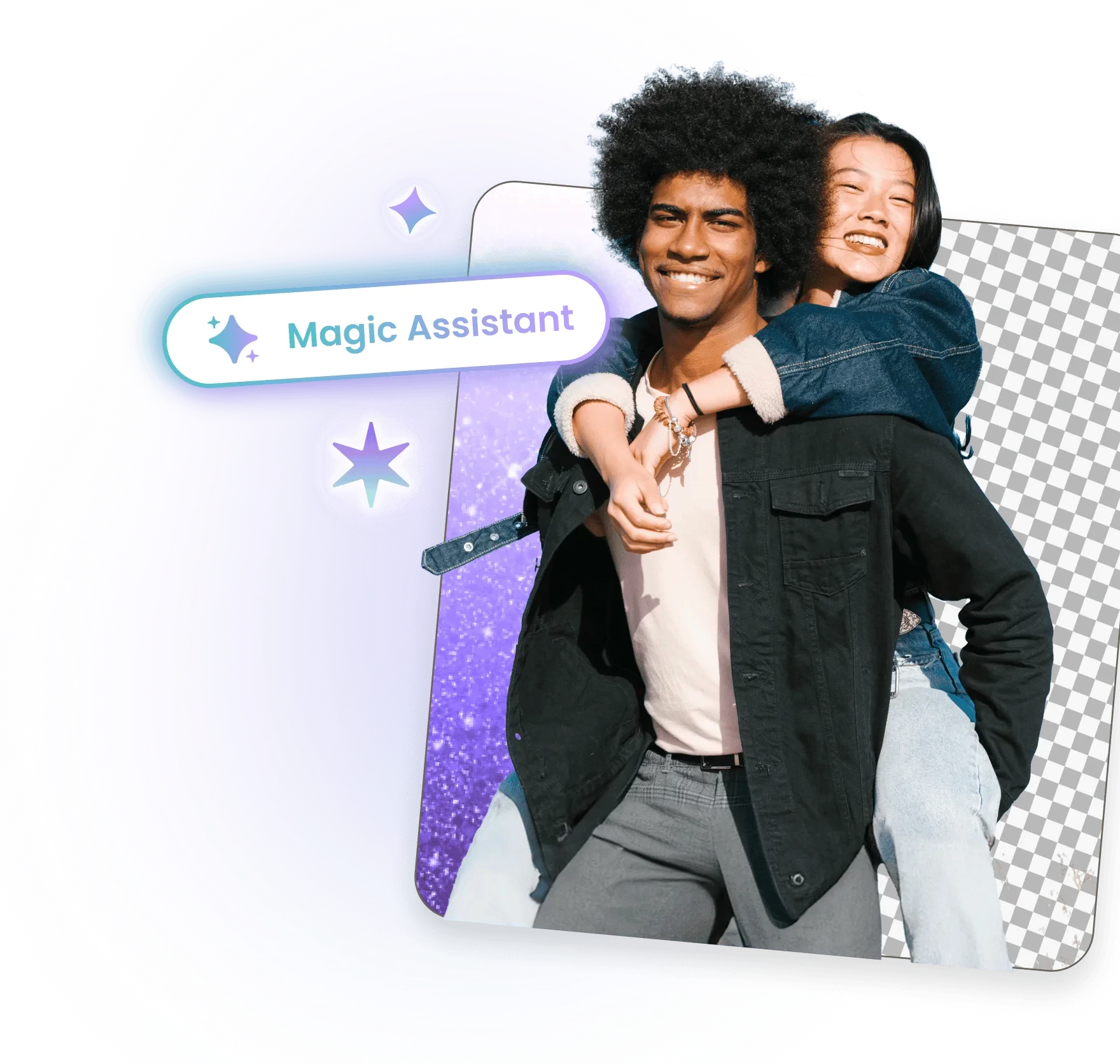
Change a background, recolor a jacket, cut out a person. The photo in the result is still the photo you took.
Ask for a yellow dress and only the dress changes. Everything else in the shot stays put.
It Works on Your Photos, Not Around Them
Change a background, recolor a jacket, cut out a person. The photo in the result is still the photo you took.
Ask for a yellow dress and only the dress changes. Everything else in the shot stays put.

Ask for One Small Fix or a Whole Design
Add a stack of photos and describe the layout you want, and Assistant brings the whole thing together.
Or open a collage you already started and ask for one change. It works in grid, freestyle, template, and single photo creations.
Ask for One Small Fix or a Whole Design
Add a stack of photos and describe the layout you want, and Assistant brings the whole thing together.
Or open a collage you already started and ask for one change. It works in grid, freestyle, template, and single photo creations.

How to Use Collage Assistant in PicCollage
01
Tap Assistant in the Editor
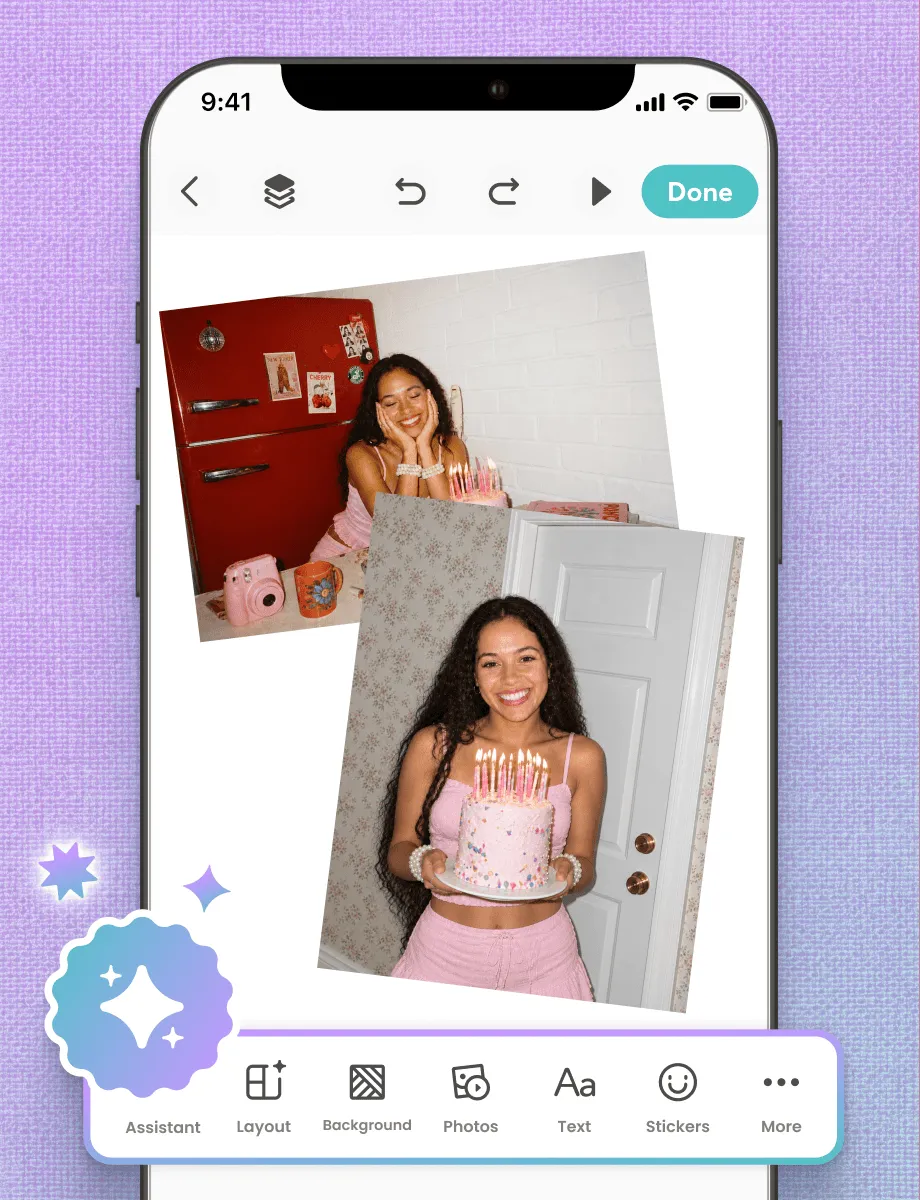
Start any creation: grid, freestyle, template, or a single photo. Once you are in the editor, tap the Assistant button in the bottom left corner.
02
Say What You Want
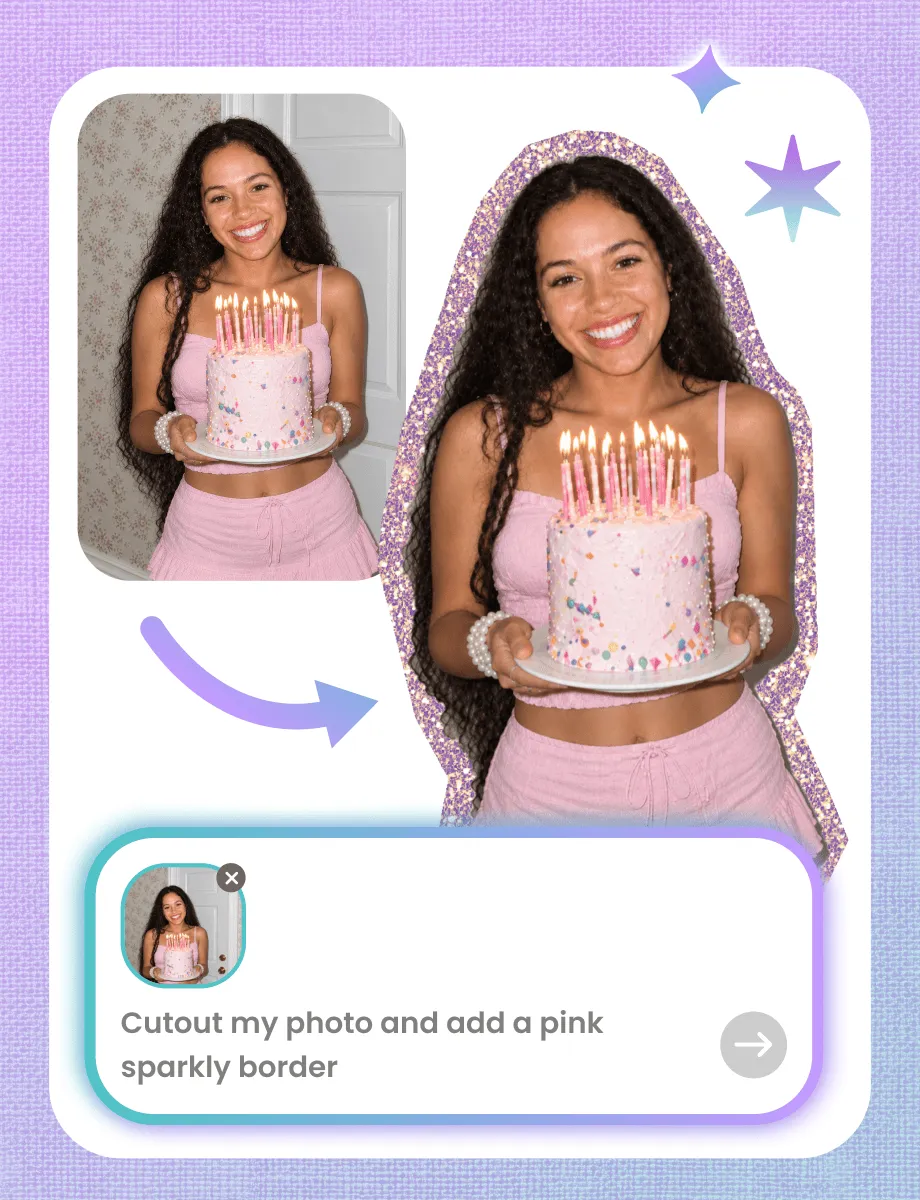
A text box opens. Type your request in plain words. "Change the background to a sunset." "Cut out everything and add a sparkly border." "Write Merry Christmas in festive letters."
03
Tap the Check and Keep Going
Happy with it? Tap the check mark in the upper right and you are back in the classic editor, with every piece Assistant added still separate and ready to move.

What to Ask Collage Assistant
Collage Assistant takes requests in plain language, so you can ask for anything from a one-word color change to a finished layout. These are the things people ask for most, plus a few that surprise them. Type it the way you would say it out loud.
Change the background. "Make the background a beach." Swap in a scene, a color, or a clean backdrop while everyone in the photo stays exactly as they are.
Recolor one thing. "Make her dress yellow." Change the color of a single object and leave the rest of the shot alone.
Photo dumps. Add a pile of photos to the canvas, describe the layout you want, and Assistant brings it all together in one go.
Fun cutouts. "Cut out everything and add a sparkly border." Cut out every object, give the pieces a sticker or glitter edge, then arrange them with stickers that match.
Ask for a style. Scrapbook, cutout, minimal, maximalist, vintage. Works for digital scrapbooking pages and birthday designs alike.
Letter a message. "Write Merry Christmas in festive letters." Assistant makes the magic letters with your words and drops them in, ready to move.
Pair your fonts. Ask for two fonts that go together and it sets the type for you. Good when you know the feeling you want but not the font name.
Add a film frame. Put the same film border on several photos at once so a set of shots looks like one roll.
Doodle it, then ask. Draw a rough shape and ask Assistant to turn it into a photo or a sticker. It works the other way too: add a photo and ask for a cute doodle sticker of it.
Anything you make this way can go straight into a greeting card or a video collage.

What Collage Assistant Can Do in PicCollage
Collage Assistant handles the parts of collage making that used to take patience. Requests fall into three rough groups, and you can mix them freely in one conversation.
The first is changing something inside a photo. A background swap, the color of one object, a person lifted out of a busy shot. Only the thing you named changes.
The second is building. Add photos to the canvas, describe the layout you want, and you get spacing, background, and decoration already sorted. Ask for a scrapbook, cutout, minimal, maximalist, or vintage look and it picks stickers and fonts to match.
The third is finishing touches: cutout edges, sparkly and sticker borders, film frames across a set of photos, font pairings, and magic letters spelling out your message. These are the small decisions that usually eat the most time.

Collage Assistant vs. a One-Tap Generator
Most tools that make a design for you hand back one finished picture. You can look at it, but you cannot reach into it. The sticker sits where it landed, the border is stuck to the photo, and if the result is close but not right, the only move is to ask again and hope.
Collage Assistant hands back the pieces. Every sticker, border, background, and filter arrives as its own thing you can tap. Drag a sticker two inches left. Retype a caption. Swap one photo and keep the rest. Delete the border, keep the cutout.
That is what makes it an assistant rather than a generator. It does the tedious part and gives you a design in progress, not something you either accept or throw away. The taste stays yours, and so does the last word.
Birthday Card Ideas When You Don't Know Where to Start
Content
Digital Scrapbooking vs. Physical Scrapbooking
Collage Assistant takes requests in plain language, so you can ask for anything from a one-word color change to a finished layout. These are the things people ask for most, plus a few that surprise them. Type it the way you would say it out loud.
Change the background. "Make the background a beach." Swap in a scene, a color, or a clean backdrop while everyone in the photo stays exactly as they are.
Recolor one thing. "Make her dress yellow." Change the color of a single object and leave the rest of the shot alone.
Photo dumps. Add a pile of photos to the canvas, describe the layout you want, and Assistant brings it all together in one go.
Fun cutouts. "Cut out everything and add a sparkly border." Cut out every object, give the pieces a sticker or glitter edge, then arrange them with stickers that match.
Ask for a style. Scrapbook, cutout, minimal, maximalist, vintage. Works for digital scrapbooking pages and birthday designs alike.
Letter a message. "Write Merry Christmas in festive letters." Assistant makes the magic letters with your words and drops them in, ready to move.
Pair your fonts. Ask for two fonts that go together and it sets the type for you. Good when you know the feeling you want but not the font name.
Add a film frame. Put the same film border on several photos at once so a set of shots looks like one roll.
Doodle it, then ask. Draw a rough shape and ask Assistant to turn it into a photo or a sticker. It works the other way too: add a photo and ask for a cute doodle sticker of it.
Anything you make this way can go straight into a greeting card or a video collage.
What to Ask Collage Assistant
Collage Assistant takes requests in plain language, so you can ask for anything from a one-word color change to a finished layout. These are the things people ask for most, plus a few that surprise them. Type it the way you would say it out loud.
Change the background. "Make the background a beach." Swap in a scene, a color, or a clean backdrop while everyone in the photo stays exactly as they are.
Recolor one thing. "Make her dress yellow." Change the color of a single object and leave the rest of the shot alone.
Photo dumps. Add a pile of photos to the canvas, describe the layout you want, and Assistant brings it all together in one go.
Fun cutouts. "Cut out everything and add a sparkly border." Cut out every object, give the pieces a sticker or glitter edge, then arrange them with stickers that match.
Ask for a style. Scrapbook, cutout, minimal, maximalist, vintage. Works for digital scrapbooking pages and birthday designs alike.
Letter a message. "Write Merry Christmas in festive letters." Assistant makes the magic letters with your words and drops them in, ready to move.
Pair your fonts. Ask for two fonts that go together and it sets the type for you. Good when you know the feeling you want but not the font name.
Add a film frame. Put the same film border on several photos at once so a set of shots looks like one roll.
Doodle it, then ask. Draw a rough shape and ask Assistant to turn it into a photo or a sticker. It works the other way too: add a photo and ask for a cute doodle sticker of it.
Anything you make this way can go straight into a greeting card or a video collage.
Sweet 16 Birthday Cards Made with Photos from the Year
Content
What Collage Assistant Can Do in PicCollage
Collage Assistant handles the parts of collage making that used to take patience. Requests fall into three rough groups, and you can mix them freely in one conversation.
The first is changing something inside a photo. A background swap, the color of one object, a person lifted out of a busy shot. Only the thing you named changes.
The second is building. Add photos to the canvas, describe the layout you want, and you get spacing, background, and decoration already sorted. Ask for a scrapbook, cutout, minimal, maximalist, or vintage look and it picks stickers and fonts to match.
The third is finishing touches: cutout edges, sparkly and sticker borders, film frames across a set of photos, font pairings, and magic letters spelling out your message. These are the small decisions that usually eat the most time.
What to Write in a Birthday Card
Content
What Collage Assistant Can Do in PicCollage
Collage Assistant handles the parts of collage making that used to take patience. Requests fall into three rough groups, and you can mix them freely in one conversation.
The first is changing something inside a photo. A background swap, the color of one object, a person lifted out of a busy shot. Only the thing you named changes.
The second is building. Add photos to the canvas, describe the layout you want, and you get spacing, background, and decoration already sorted. Ask for a scrapbook, cutout, minimal, maximalist, or vintage look and it picks stickers and fonts to match.
The third is finishing touches: cutout edges, sparkly and sticker borders, film frames across a set of photos, font pairings, and magic letters spelling out your message. These are the small decisions that usually eat the most time.

01
Tap Assistant in the Editor
Start any creation: grid, freestyle, template, or a single photo. Once you are in the editor, tap the Assistant button in the bottom left corner.
02
Say What You Want
A text box opens. Type your request in plain words. "Change the background to a sunset." "Cut out everything and add a sparkly border." "Write Merry Christmas in festive letters."
03
Tap the Check and Keep Going
Happy with it? Tap the check mark in the upper right and you are back in the classic editor, with every piece Assistant added still separate and ready to move.

How to Use Collage Assistant in PicCollage
FAQ
What is Collage Assistant?
Collage Assistant is a feature inside the PicCollage app that changes your collage when you ask for something in plain language. You can swap backgrounds, recolor objects, make cutouts, pick font pairings, and ask for a whole layout. It is built to speed up the work without taking the design out of your hands.
Where do I find Collage Assistant in the app?
It lives in the editor, so you can reach it from any creation: grid, freestyle, template, or a single photo. Once you are in the editor, tap the Assistant button in the bottom left corner and a text box opens for your request.
Can I still edit a design after Collage Assistant makes it?
Yes, and this is the point. Everything Assistant adds arrives as a separate piece rather than one finished picture. Stickers, borders, backgrounds, and filters can all be tapped, moved, restyled, or deleted by hand in the classic editor, as much as you want.
Does Collage Assistant change my original photo?
No. Your camera roll is untouched. Assistant works on the copy sitting in your collage, so the original photo on your phone stays exactly as it was. If you do not like a change, undo it and the collage goes back to where it started.