
Want to add text to a photo that actually stops the scroll? You don’t need design skills or a fancy app to do it. Magic Letters helps you turn plain text into bold, eye-catching designs in just a few seconds.
Go for a dreamy look with Cloudy script, a glossy Gleam finish for a big announcement, or cozy Crochet lettering for a handmade touch on a birthday card. The app has over 20 styles that can be customized on the spot to your message for to make and mood feel elevated.
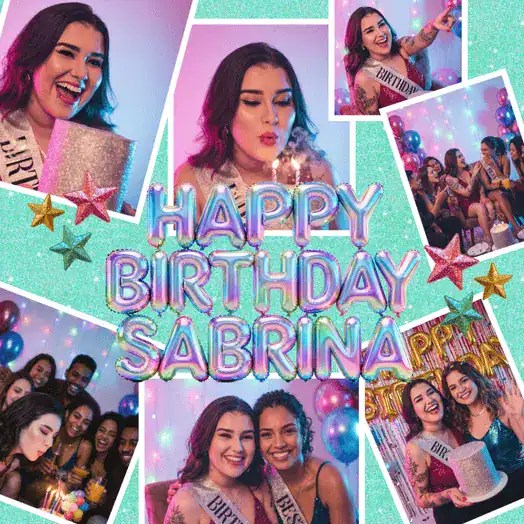


Table of Contents:
What Are Magic Letters?
Let’s clear up one thing first: Magic Letters are not fonts. The PicCollage app generates a professionally designed script layout just for your message – complete with built-in decorative touches like sparkles, flourishes, and bold patterns, so your words become part of the photo instead of sitting on top of it.
Just type your text, pick a style, and let Magic Letters do the design work for you. Here’s exactly how.
How to Use Magic Letters (Step-by-Step)
Ready to add text to your photo? Here’s how to use Magic Letters in the PicCollage app.
- Open your photo in the collage editor.
- Tap More on the bottom menu, then select Magic Letters.
- Type the word or phrase you want to turn into a design.
- Browse the Preset tab and pick a style that fits your vibe.
- Tap Generate and give it a few seconds to work its magic.
- Love what you see? Tap the ✓ ‘checkmark’ icon in the top right to add it to your collage.

Pro tips for the best results:
- Keep your phrase short. One to three words tends to look the cleanest.
- Choose a style with enough contrast to stand out against the colors of your photo or collage.
- Not feeling the first result? Pick another preset and tap Regenerate to try a different style.
When to Use Magic Letters
Magic Letters shine anytime you want your words to feel as special as your photo. Here are a few of our favorite ways to use them:
- Greeting cards for birthdays, Mother’s Day, Father’s Day, and holidays
- Invitations and announcements, from baby showers to graduation parties
- Scrapbook titles that give each memory its own little headline
- Photo dumps and Instagram captions that need a fun, personal touch
If you have a photo that already means something to you, Magic Letters help you say exactly what you’re feeling, without any extra design work.


Popular Magic Letters Styles to Try
Not sure which style to pick first? There are more than 20 styles in the Preset tab, with new ones added all the time, so here’s a peek at a few crowd favorites to get you started.
- Float. Dreamy, iridescent balloon shine.
- Bubbles. Glassy, water-dipped sparkle.
- Seaside. Beachy script with shells and stars.
- Crochet. Cozy yarn-stitched lettering.
- Cloudy. Soft, fluffy cloud texture.
- Ransom. Bold cutout, mix-and-match look.
- Ribbon. Elegant cursive with a flourish.
- Gleam. Metallic 3D gloss and sparkle.

Since new presets are added all the time, your Magic Letters will always feel fresh, more like your own aesthetic text than a template everyone else is using too.
Design Tips: Make Your Magic Letters Pop
A gorgeous text effect can still get lost if it’s placed the wrong way. A few small tweaks make a big difference.
Give your text room to breathe by placing it over a simpler part of the photo, like open sky or a plain background. If your photo is busy everywhere, try adding a small shape or color block behind your Magic Letters first.
Keep your phrase short and let the style do the talking. One strong phrase, like “Happy Birthday,” “Grateful,” or “Celebrate,” often makes more impact than a long sentence.


Ready to Add Text to Your Photos?
Your next favorite photo is just a few taps away from something truly special. Open PicCollage, tap More, and try Magic Letters on your next card, invitation, or photo dump.
Ready to create your next collage with Magic Letters? The possibilities are endless, and we can’t wait to see what you create. Be sure to follow along on social @piccollage for more tips, tricks, and inspiration.
Running into an issue or want the quick-reference version of these steps? Check out our Guide to Magic Letters Help Center article for troubleshooting and support.
FAQ
Can I use Magic Letters on any photo?
Yes! Magic Letters work on any photo or collage, from a single snapshot to a full layout. For the most readable result, look for a spot on your photo with a simple background or enough open space.
What words work best with Magic Letters?
Short phrases work best, usually one to three words. Think “Happy Birthday,” “Best Day Ever,” or a single word like “Family.” Think of Magic Letters as your big headline, then add longer or more detailed messages with classic text.
How many Magic Letters can I create for free?
Free users can generate Magic Letters three times per day, so you can still enjoy the magic! VIP subscribers get unlimited access, so you can try out as many styles as you want to get the perfect effect.
Are Magic Letters fonts?
No. Magic Letters are not fonts, they’re magically designed text styles with built-in decorative touches like sparkles, flourishes, and bold patterns. Instead of just changing how your letters look, they turn your words into part of the photo’s design itself.