
Create Heartfelt
Holiday Cards
in Minutes
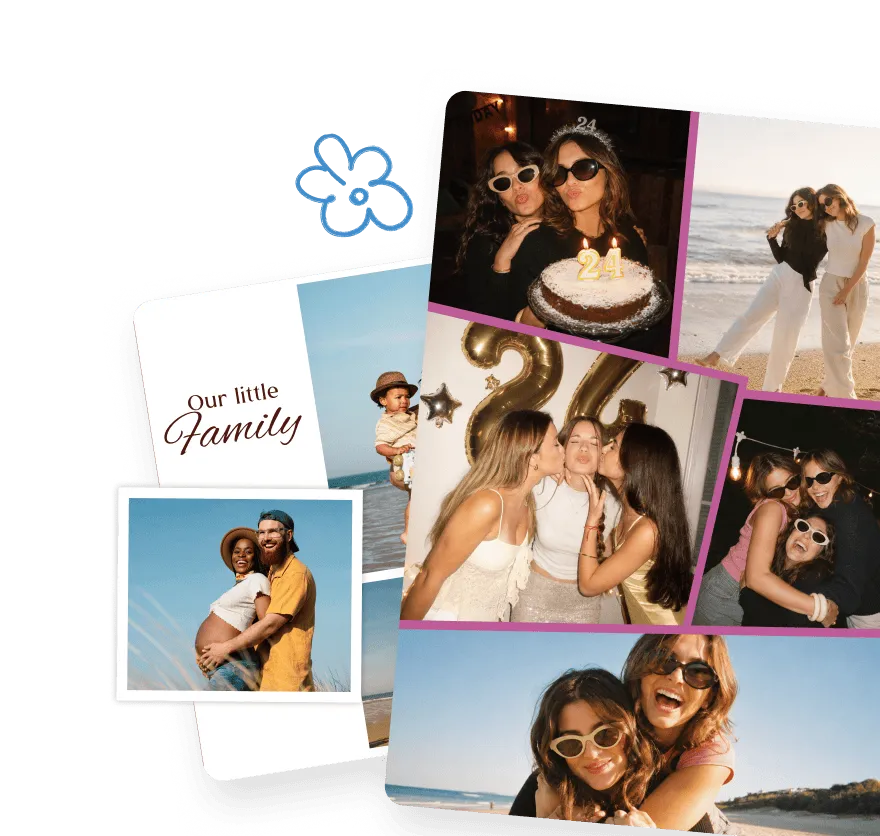
Turn your photos into a clean grid in seconds. Two pictures, six, twelve, or even more. PicCollage makes photo grids effortless, with full control over layout, spacing, and design. Free download, no account required.


Create Heartfelt
Holiday Cards
in Minutes
Turn your photos into a clean grid in seconds. Two pictures, six, twelve, or even more. PicCollage makes photo grids effortless, with full control over layout, spacing, and design. Free download, no account required.
Create Heartfelt
Holiday Cards
in Minutes
Turn your photos into a clean grid in seconds. Two pictures, six, twelve, or even more. PicCollage makes photo grids effortless, with full control over layout, spacing, and design. Free download, no account required.
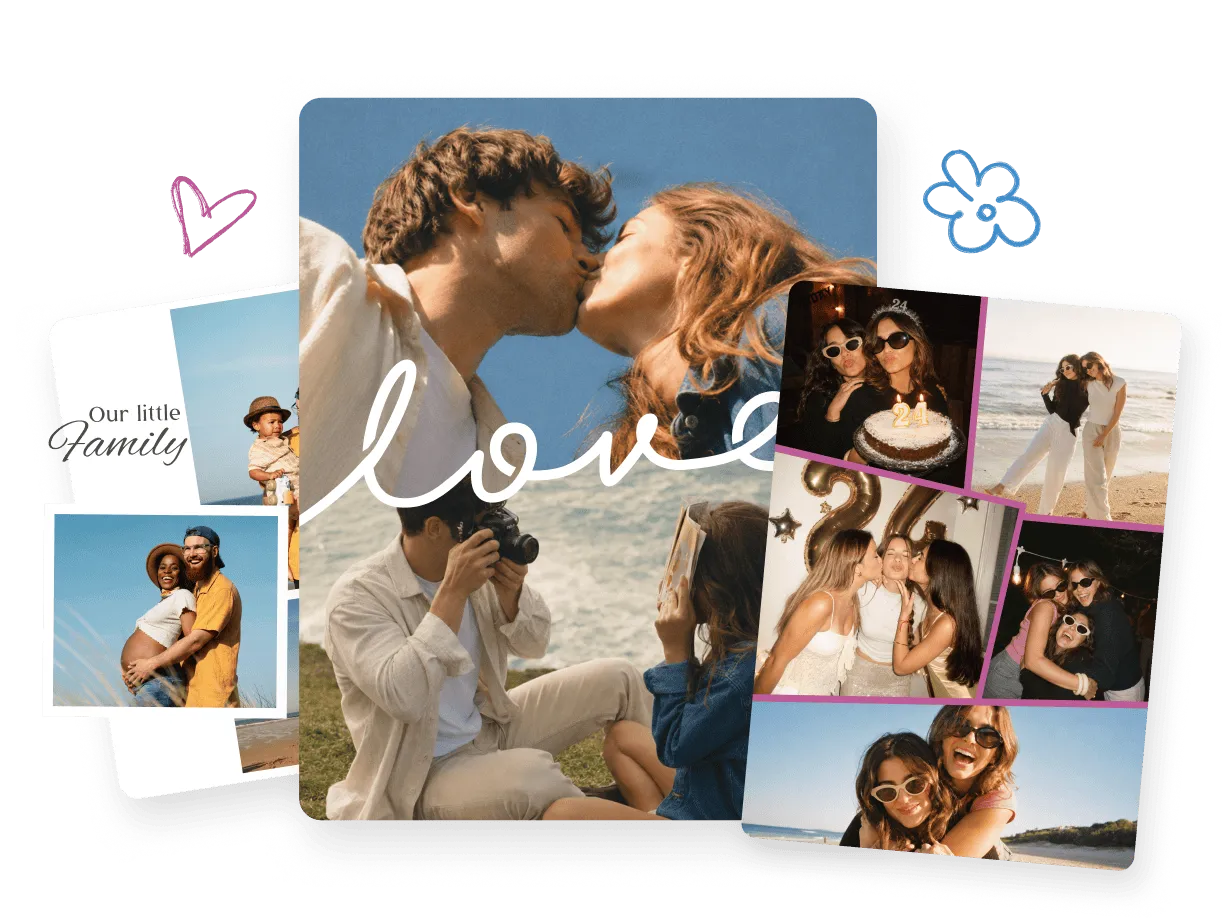
Why Make Photo Grids in PicCollage
Why Make Photo Grids in PicCollage
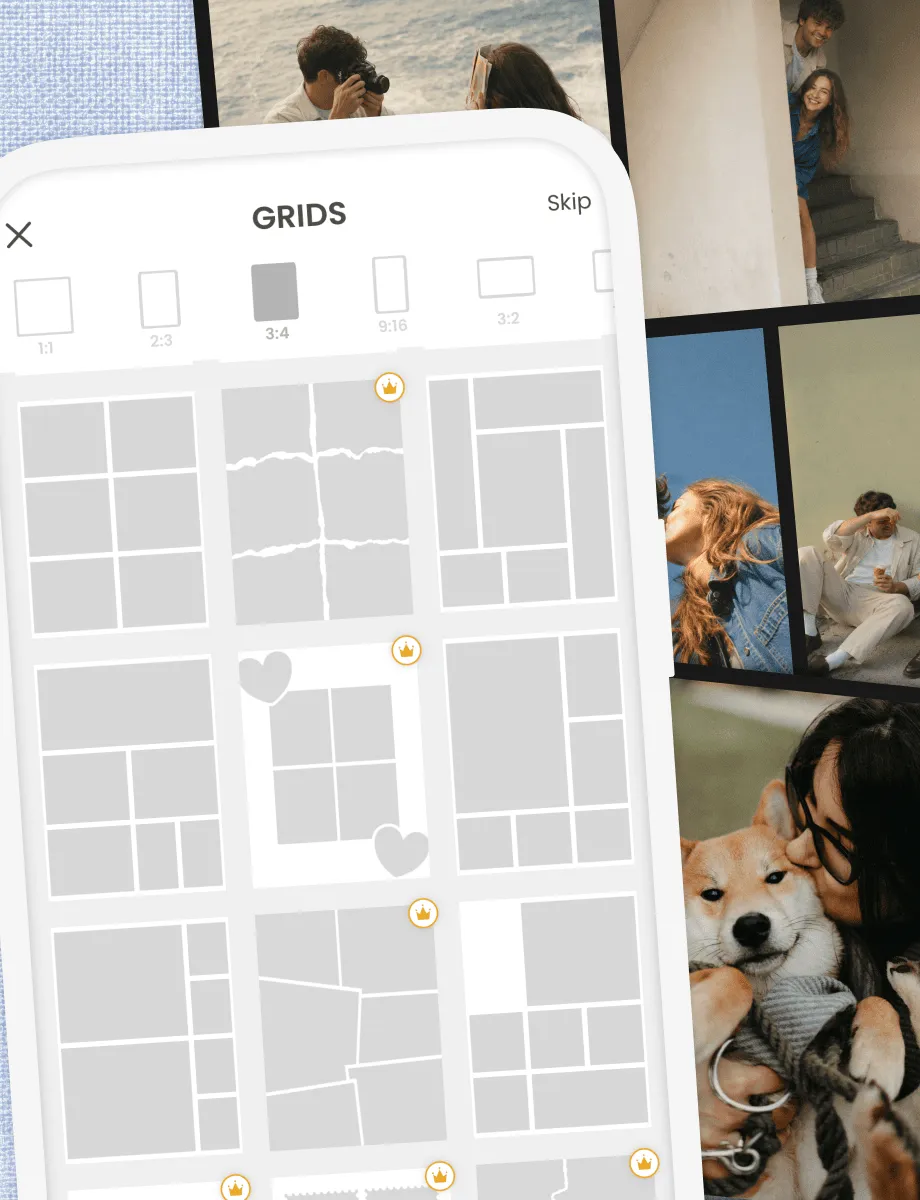
Layouts for Any Number of Photos
Two, four, nine, or up to +30 in one grid
Smart suggestions based on how many you pick
Square, portrait, and custom row-and-column setups
Layouts for Any Number of Photos
Two, four, nine, or up to +30 in one grid
Smart suggestions based on how many you pick
Square, portrait, and custom row-and-column setups
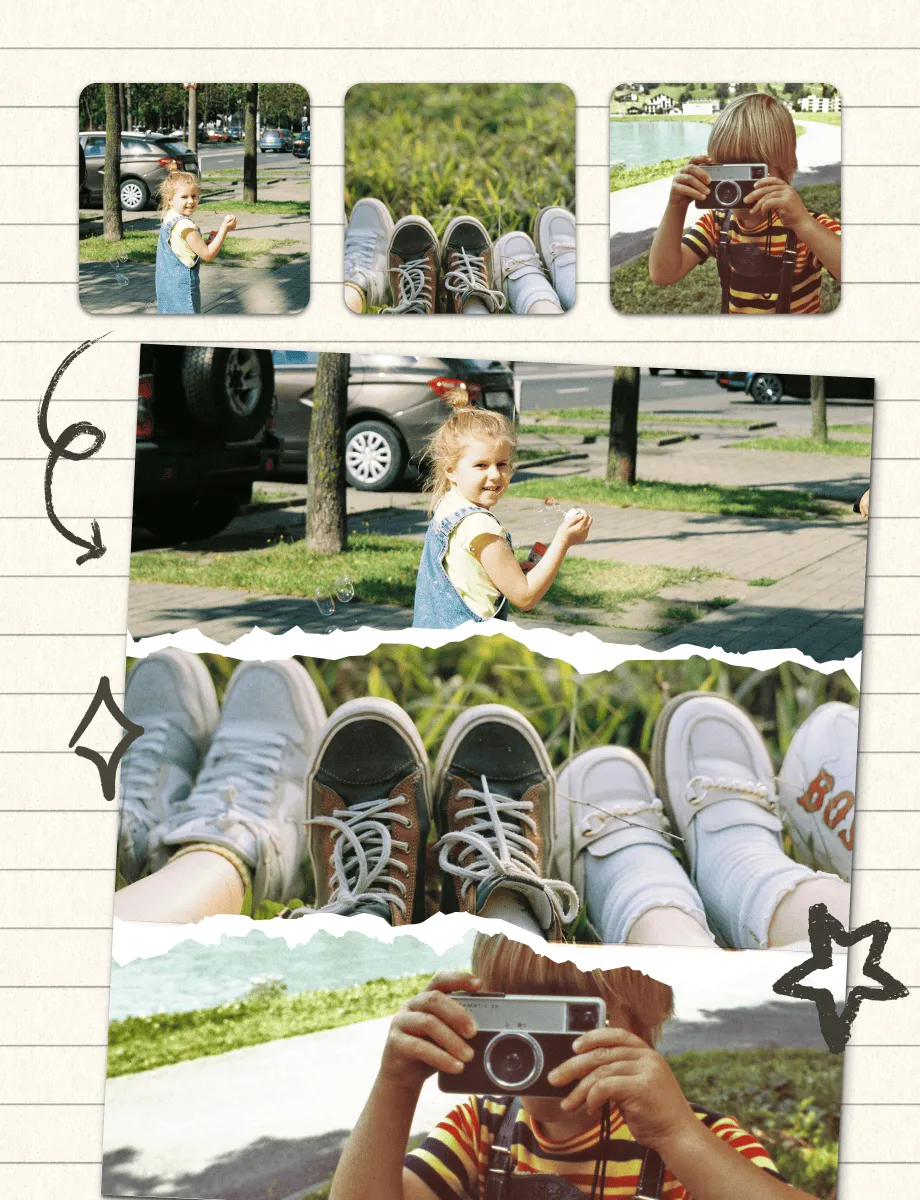
Magic Tools That Save You Time
Resize photos inside the grid with a pinch
Set your own spacing, borders, and background color
Swap or replace shots without starting over
Magic Tools That Save You Time
Resize photos inside the grid with a pinch
Set your own spacing, borders, and background color
Swap or replace shots without starting over

Grids Ready in Minutes
Build straight from your camera roll, no account needed
Works offline while you travel or commute
Save in high resolution for posts or prints
Grids Ready in Minutes
Build straight from your camera roll, no account needed
Works offline while you travel or commute
Save in high resolution for posts or prints
The Photo Grid App That Actually Gives You Control
The Photo Grid App That Actually Gives You Control
Most photo grid apps lock you into rigid templates. You pick the layout, fill in the boxes, and that's it. If the proportions feel off or the spacing is wrong, too bad. PicCollage works differently.
In PicCollage, the photo grid is a starting point, not a cage. Drag photos to resize them inside the grid. Adjust the spacing between cells until it feels right. Add a colored background or a custom border. Swap photos around without restarting. The grid bends to what you want, not the other way around.
People come for a photo grid maker and stay because the app does everything else too. Collages, cards, invitations, social media graphics, wall art. The grid is one feature in a creative toolkit that handles the rest of your visual projects in the same place.
Most photo grid apps lock you into rigid templates. You pick the layout, fill in the boxes, and that's it. If the proportions feel off or the spacing is wrong, too bad. PicCollage works differently.
In PicCollage, the photo grid is a starting point, not a cage. Drag photos to resize them inside the grid. Adjust the spacing between cells until it feels right. Add a colored background or a custom border. Swap photos around without restarting. The grid bends to what you want, not the other way around.
People come for a photo grid maker and stay because the app does everything else too. Collages, cards, invitations, social media graphics, wall art. The grid is one feature in a creative toolkit that handles the rest of your visual projects in the same place.

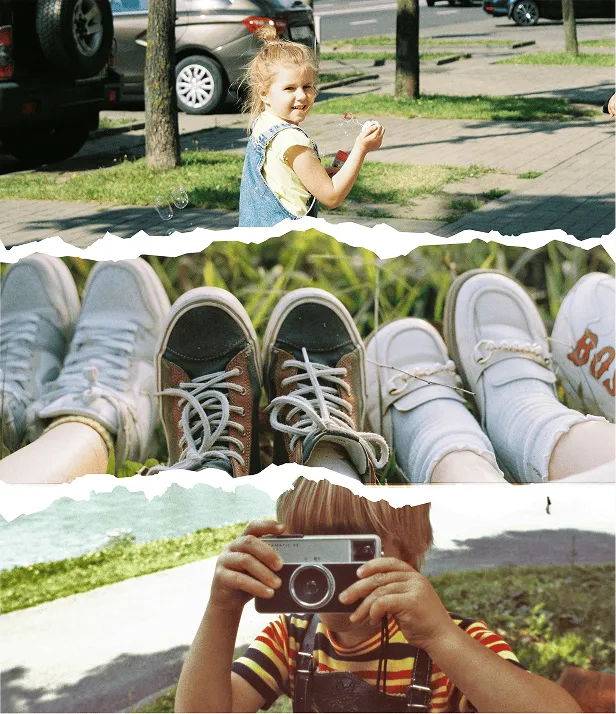




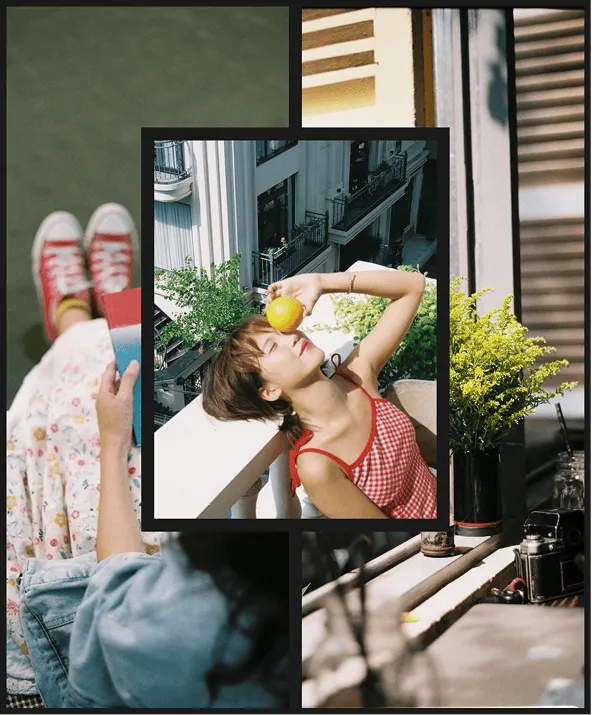




How to Make a Photo Grid in PicCollage
01
📱 Download PicCollage
Get the app free from the App Store or Google Play. No account, no credit card, no sign-up. The whole grid maker opens the moment you tap to start.
02
📸 Select Your Photos
Pick a few photos from your camera roll. The app suggests grid layouts based on how many you select. Two photos get side-by-side options. Nine photos suggest a 3×3 grid. The math is handled for you.
03
🎨 Adjust the Grid and Save
Tap a layout to apply it, then customize. Change spacing, swap photos, adjust borders, add color, drop in text or stickers. When it looks right, save in high resolution. Post it, print it, or send it. The whole process takes under five minutes.
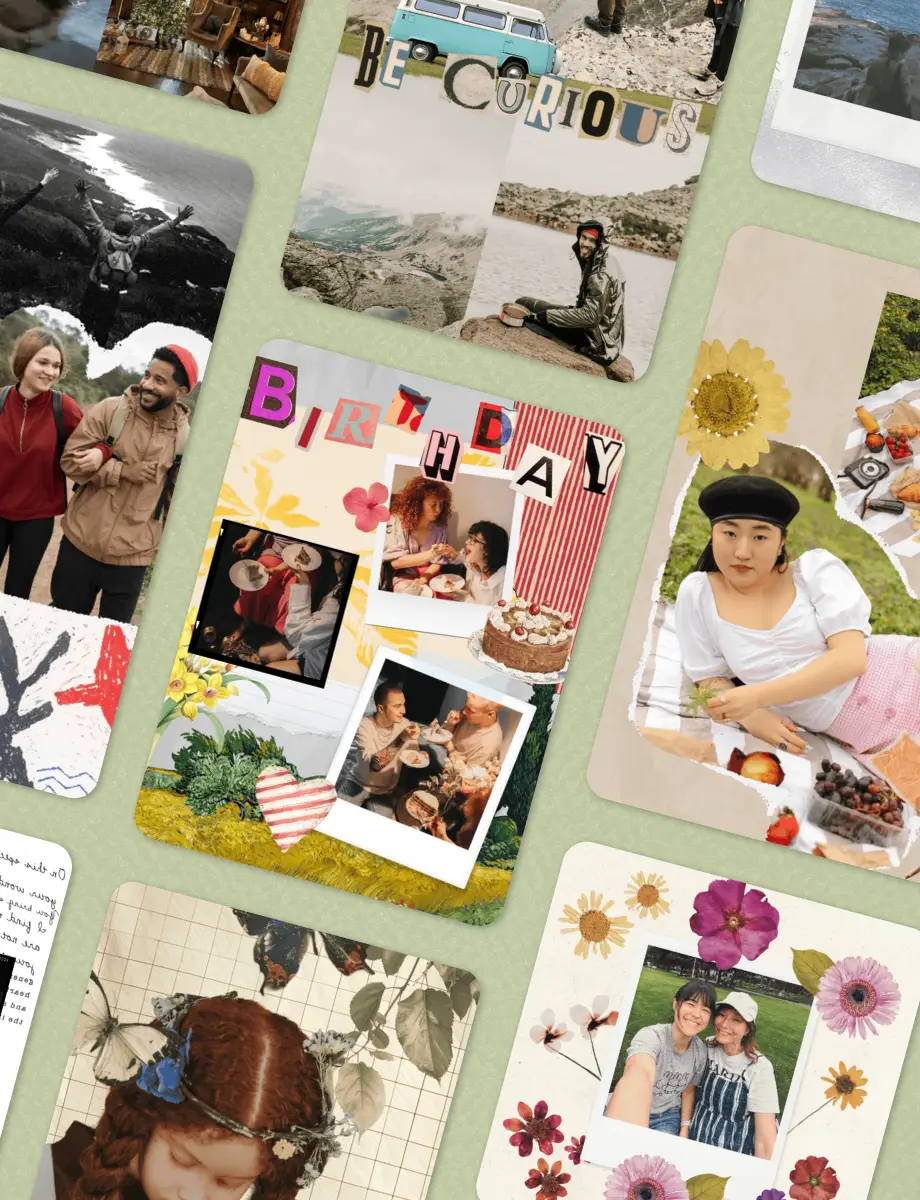
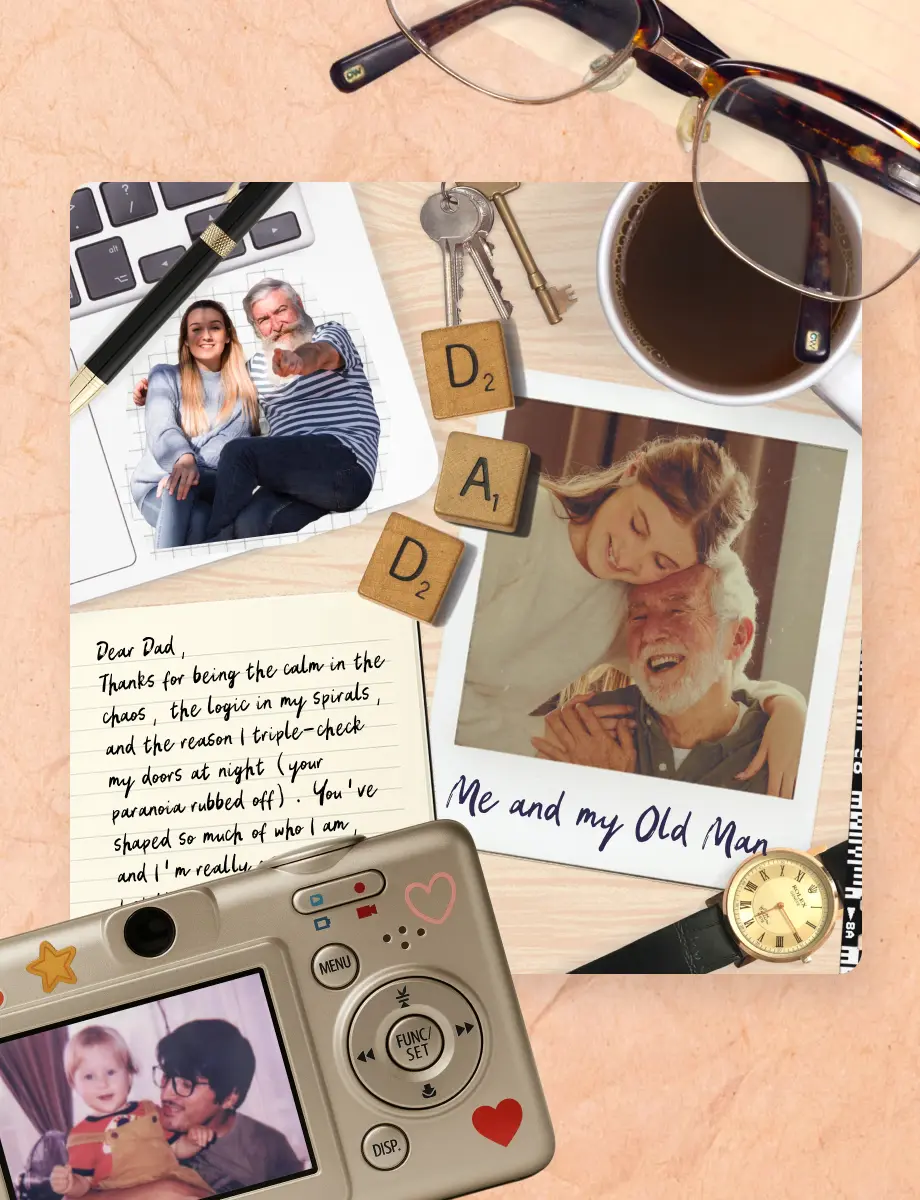
Photo Grid Layouts for Every Number of Photos
The right photo grid layout depends entirely on how many photos you want to include, and PicCollage handles every common configuration. With two photos you can go side by side, stacked top and bottom, or split diagonally, which is perfect for before and after grids, comparison shots, or pairing a portrait with a landscape image. It's the simplest grid and one of the most useful. Three photos work well as a vertical strip, a horizontal row, or an L shaped layout with one large photo and two smaller ones, great for travel triptychs or showing three angles of the same scene.
Four photos give you the classic 2×2 grid: even spacing, balanced composition, four equal cells that read cleanly on every screen. Six photos become a 2×3 or 3×2 depending on orientation, which is the sweet spot for event recaps and weekly photo dumps. Nine photos fill the full 3×3 grid, the Instagram favorite format that also splits into nine individual posts if you want to build a profile mural. Once you go past twelve photos you move into larger grids for wall prints, year in review collages, and full event documentation, with support for up to +30 photos per design and custom row and column configurations.
Whatever number you pick, every layout stays fully editable. Resize individual cells, change spacing, and swap photos in and out until the grid adapts to exactly what you need.
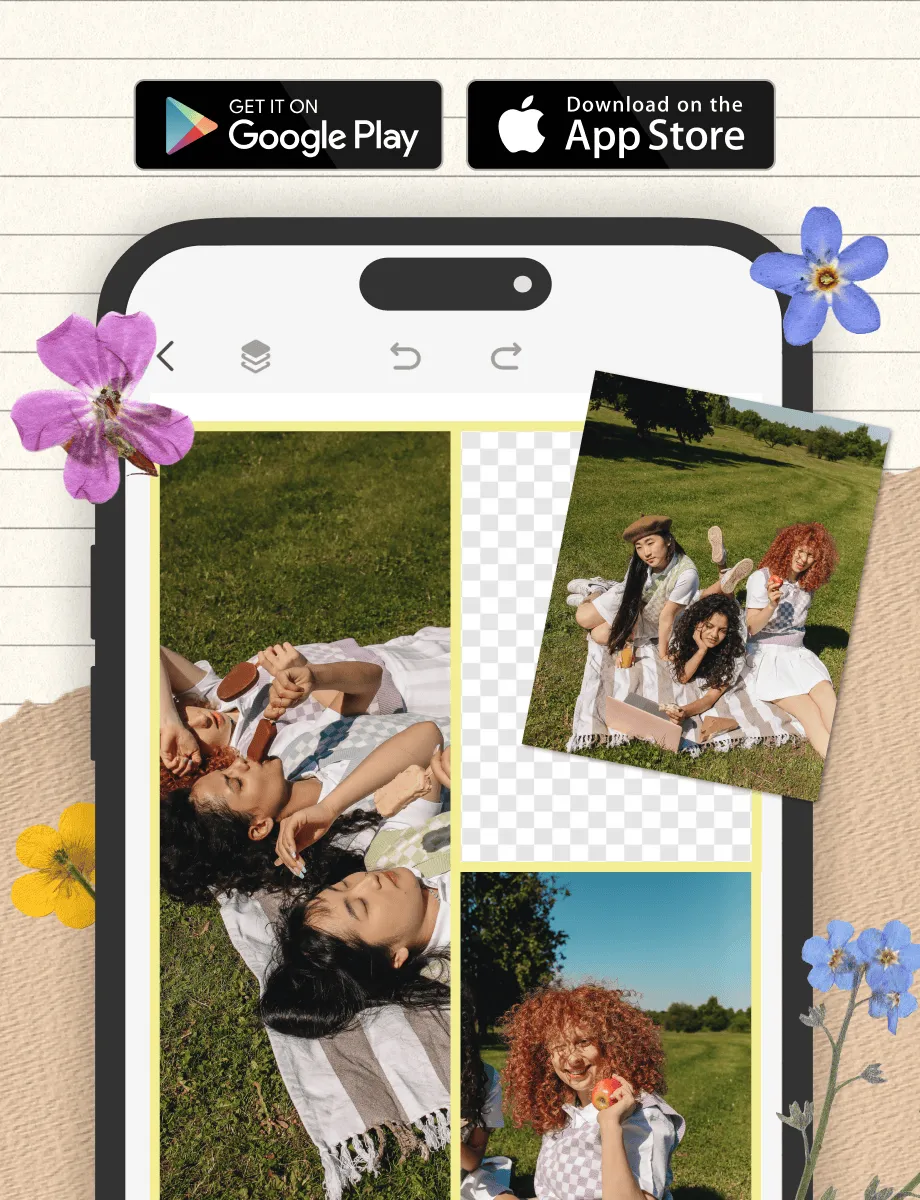
Make a Photo Grid on iPhone or Android
The photo grid feature works identically across both platforms. You download the app, tap on Grid to start, and select your photos, and it reads how many you picked to suggest appropriate layouts.
On iPhone and Android the experience is built for the small screen, though it also works perfectly on tablets. Drag photos with your finger, pinch to resize within a cell, and tap to swap or replace, with the grid rendering in real time as you adjust. When it looks right, save the finished grid to your camera roll in high resolution. Both platforms also work offline once the app is installed, which matters if you're traveling or dealing with spotty data. You can open the grid maker, build your design, and save the whole thing without a connection, then upload to social media later.
Birthday Card Ideas When You Don't Know Where to Start
Content
Digital Scrapbooking vs. Physical Scrapbooking
The right photo grid layout depends entirely on how many photos you want to include, and PicCollage handles every common configuration. With two photos you can go side by side, stacked top and bottom, or split diagonally, which is perfect for before and after grids, comparison shots, or pairing a portrait with a landscape image. It's the simplest grid and one of the most useful. Three photos work well as a vertical strip, a horizontal row, or an L shaped layout with one large photo and two smaller ones, great for travel triptychs or showing three angles of the same scene.
Four photos give you the classic 2×2 grid: even spacing, balanced composition, four equal cells that read cleanly on every screen. Six photos become a 2×3 or 3×2 depending on orientation, which is the sweet spot for event recaps and weekly photo dumps. Nine photos fill the full 3×3 grid, the Instagram favorite format that also splits into nine individual posts if you want to build a profile mural. Once you go past twelve photos you move into larger grids for wall prints, year in review collages, and full event documentation, with support for up to +30 photos per design and custom row and column configurations.
Whatever number you pick, every layout stays fully editable. Resize individual cells, change spacing, and swap photos in and out until the grid adapts to exactly what you need.
Photo Grid Layouts for Every Number of Photos
The right photo grid layout depends entirely on how many photos you want to include, and PicCollage handles every common configuration. With two photos you can go side by side, stacked top and bottom, or split diagonally, which is perfect for before and after grids, comparison shots, or pairing a portrait with a landscape image. It's the simplest grid and one of the most useful. Three photos work well as a vertical strip, a horizontal row, or an L shaped layout with one large photo and two smaller ones, great for travel triptychs or showing three angles of the same scene.
Four photos give you the classic 2×2 grid: even spacing, balanced composition, four equal cells that read cleanly on every screen. Six photos become a 2×3 or 3×2 depending on orientation, which is the sweet spot for event recaps and weekly photo dumps. Nine photos fill the full 3×3 grid, the Instagram favorite format that also splits into nine individual posts if you want to build a profile mural. Once you go past twelve photos you move into larger grids for wall prints, year in review collages, and full event documentation, with support for up to +30 photos per design and custom row and column configurations.
Whatever number you pick, every layout stays fully editable. Resize individual cells, change spacing, and swap photos in and out until the grid adapts to exactly what you need.
Sweet 16 Birthday Cards Made with Photos from the Year
Content
Make a Photo Grid on iPhone or Android
The photo grid feature works identically across both platforms. You download the app, tap on Grid to start, and select your photos, and it reads how many you picked to suggest appropriate layouts.
On iPhone and Android the experience is built for the small screen, though it also works perfectly on tablets. Drag photos with your finger, pinch to resize within a cell, and tap to swap or replace, with the grid rendering in real time as you adjust. When it looks right, save the finished grid to your camera roll in high resolution. Both platforms also work offline once the app is installed, which matters if you're traveling or dealing with spotty data. You can open the grid maker, build your design, and save the whole thing without a connection, then upload to social media later.
What to Write in a Birthday Card
Content
Make a Photo Grid on iPhone or Android
The photo grid feature works identically across both platforms. You download the app, tap on Grid to start, and select your photos, and it reads how many you picked to suggest appropriate layouts.
On iPhone and Android the experience is built for the small screen, though it also works perfectly on tablets. Drag photos with your finger, pinch to resize within a cell, and tap to swap or replace, with the grid rendering in real time as you adjust. When it looks right, save the finished grid to your camera roll in high resolution. Both platforms also work offline once the app is installed, which matters if you're traveling or dealing with spotty data. You can open the grid maker, build your design, and save the whole thing without a connection, then upload to social media later.

01
📱 Download PicCollage
Get the app free from the App Store or Google Play. No account, no credit card, no sign-up. The whole grid maker opens the moment you tap to start.
02
📸 Select Your Photos
Pick a few photos from your camera roll. The app suggests grid layouts based on how many you select. Two photos get side-by-side options. Nine photos suggest a 3×3 grid. The math is handled for you.
03
🎨 Adjust the Grid and Save
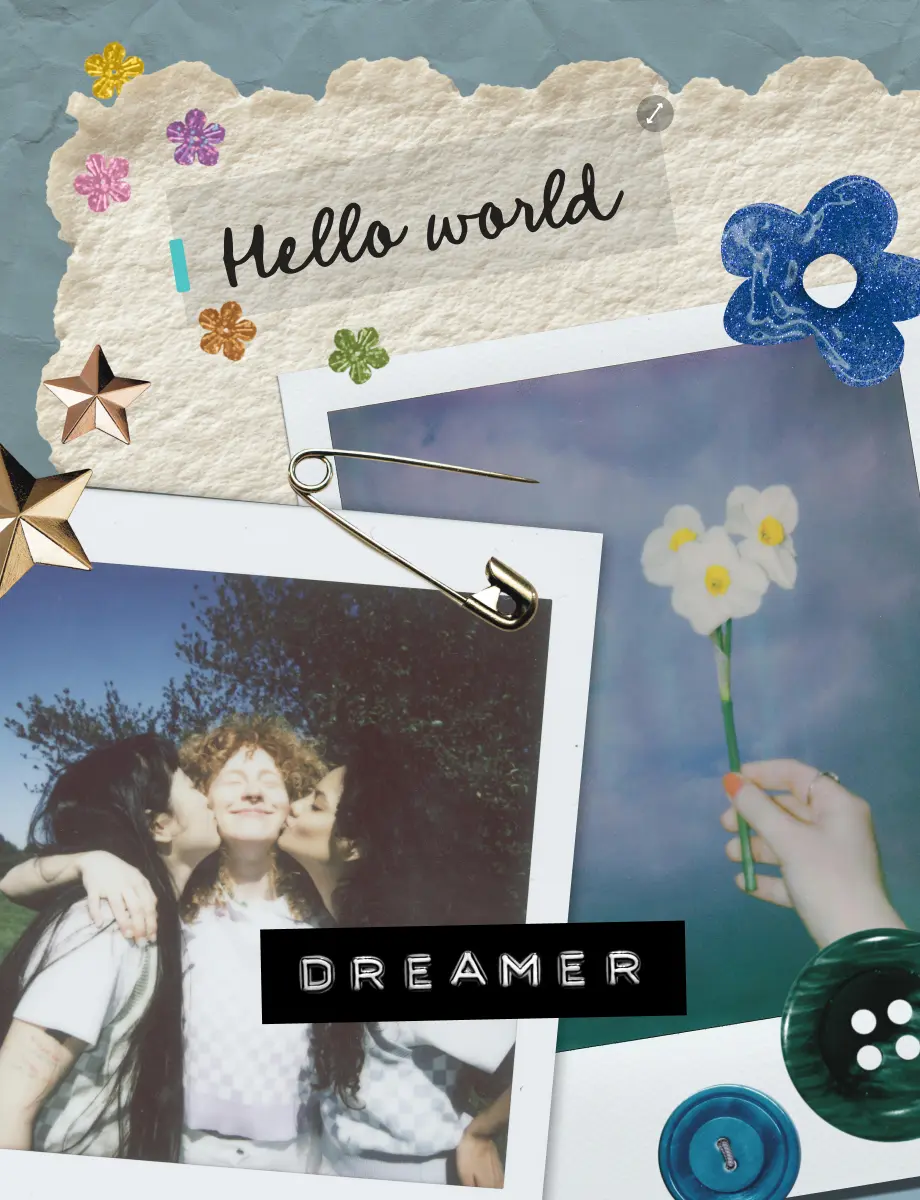
Tap a layout to apply it, then customize. Change spacing, swap photos, adjust borders, add color, drop in text or stickers. When it looks right, save in high resolution. Post it, print it, or send it. The whole process takes under five minutes.
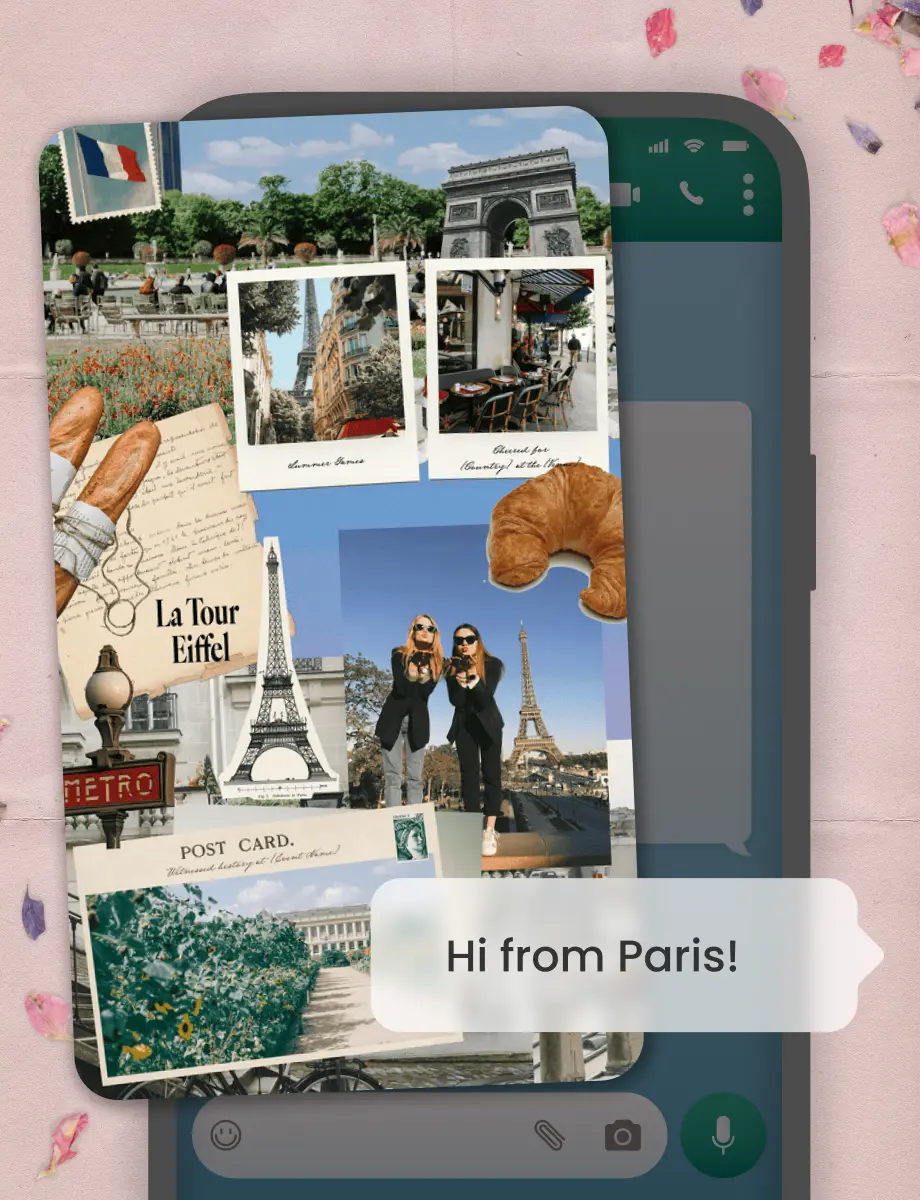
How to Make a Photo Grid in PicCollage
Learn how to create grids in minutes. No experience required.

Frequently Asked Questions
Is PicCollage really free as a photo grid app?
Yes. You can download our app for free on iOS and Android. Premium templates and stickers are available with an optional subscription, but a few basic grid features you need (layouts, spacing, borders, photo placement) are included in the free version.
How many photos can I put in a single grid?
PicCollage supports photo grids from 2 photos up to 20+. The app suggests appropriate layouts based on how many photos you select, but you can also build custom row-and-column configurations for larger grids.
Can I make a 3×3 photo grid for Instagram?
Yes. PicCollage includes a 3×3 grid layout in 1:1 (square) or 3:4 (portrait) aspect ratio, which is exactly what Instagram uses for feed posts.
What's the difference between a photo grid and a photo collage?
A photo grid uses a rigid, geometric layout with equal-sized cells (or a custom row/column pattern). A photo collage is more freeform, with overlapping photos, varied sizes, stickers, and decorative elements. Grids feel clean and structured. Collages feel creative and personal. PicCollage handles both within the same app.